Changelog
May 14, 2026
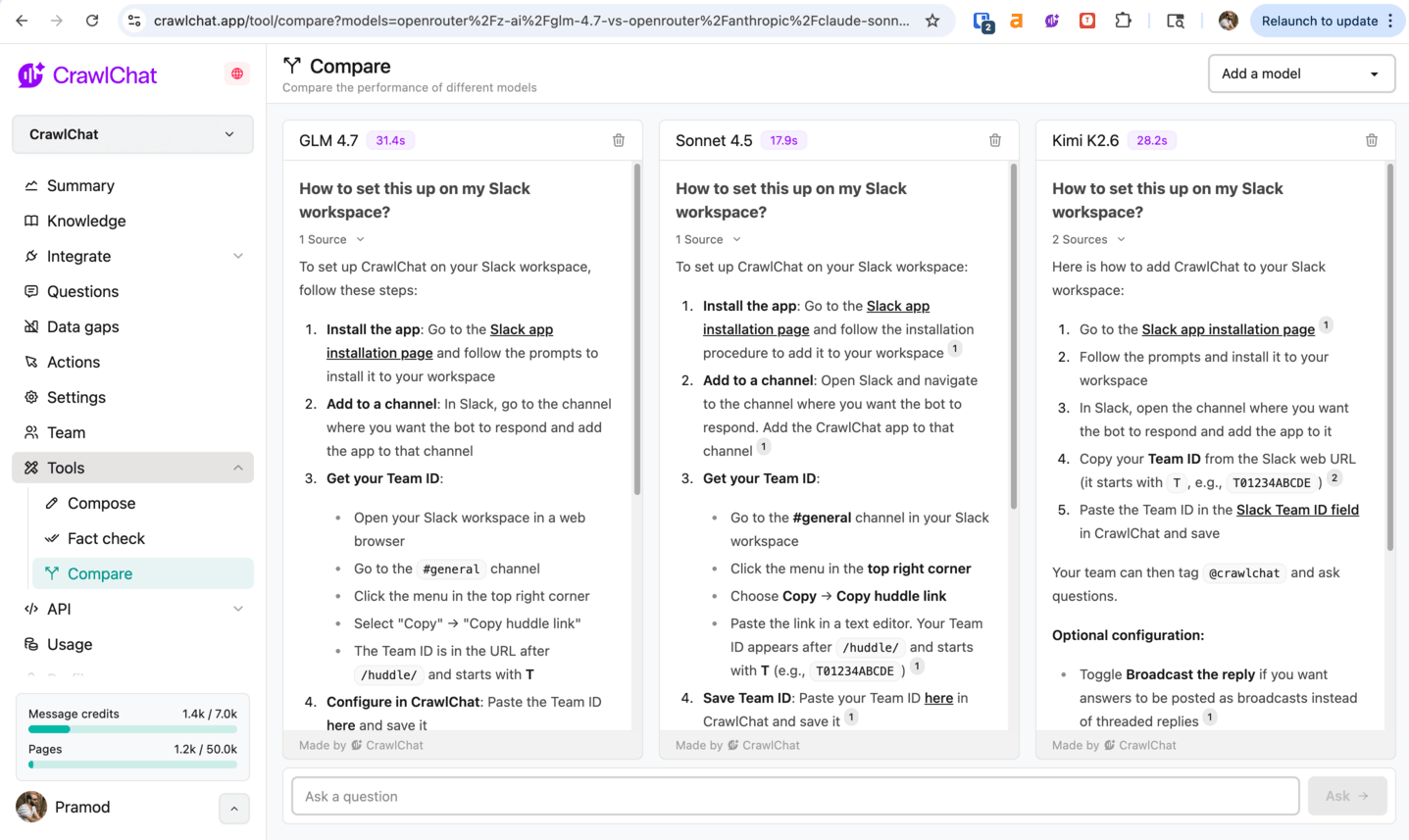
Run and compare the same question against multiple models at once, see each response with a latency badge, and share the setup via the URL. Open it from the scrape sidebar or here.
May 13, 2026
Top-up credits now roll over to the next billing period.
April 10, 2026
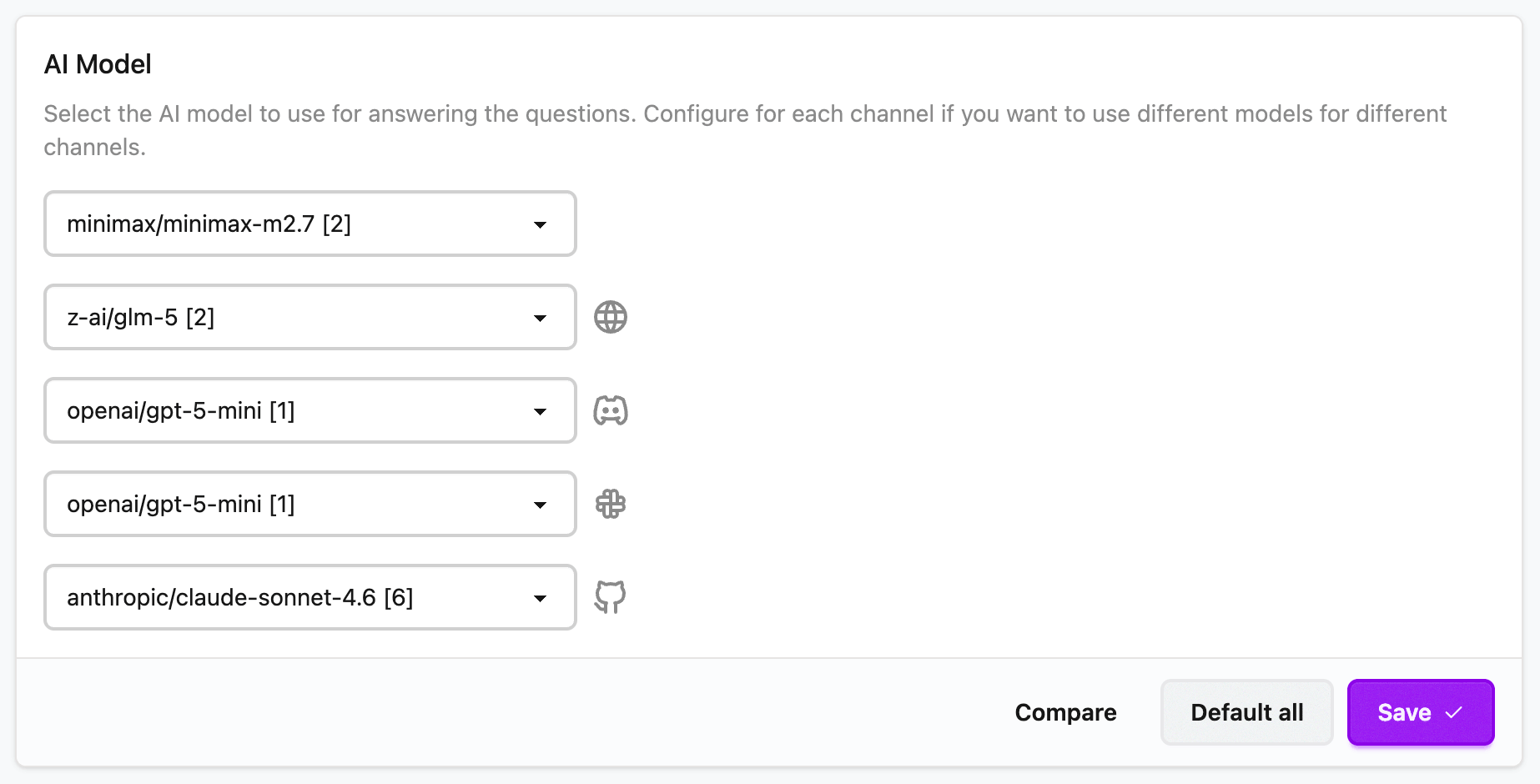
You can now configure an AI model separately for each channel, such as Web embed, Discord bot, Slack app, and GitHub bot. This gives you the flexibility to tailor models to different use cases and user usage patterns. Configure it from here.
April 9, 2026
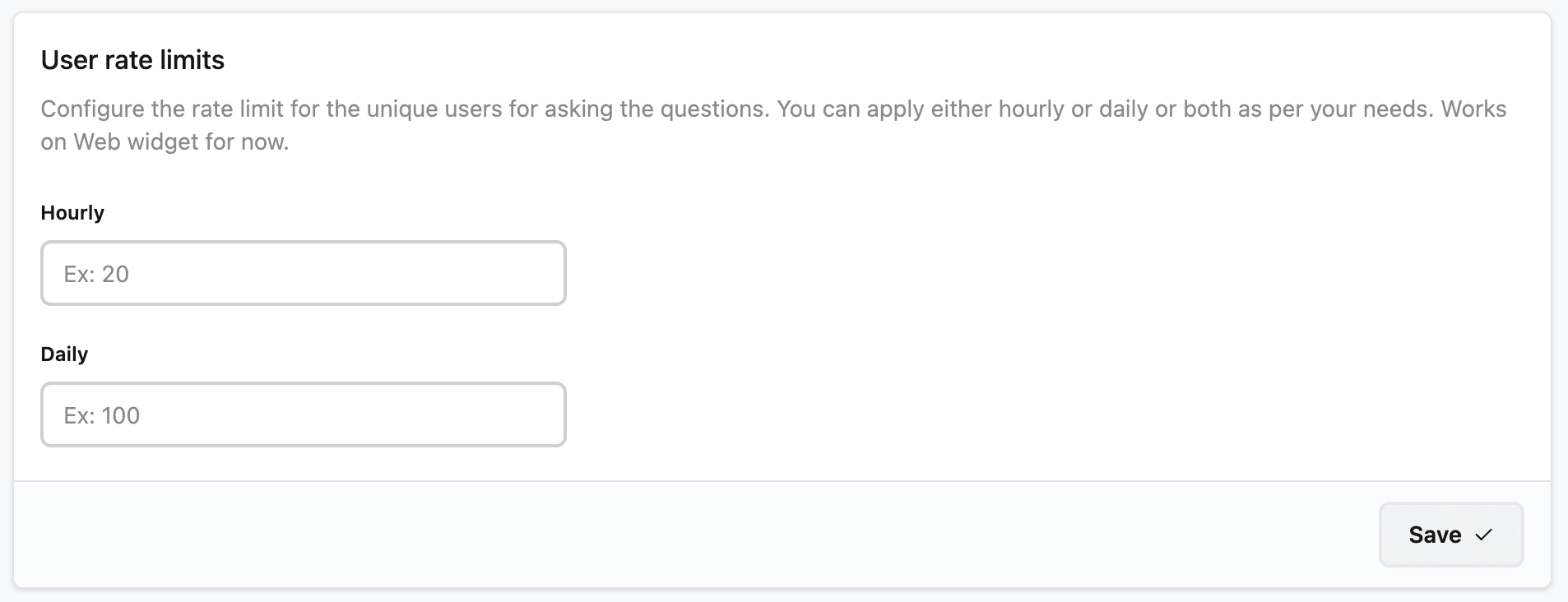
Now you can apply rate limits on unique users for the questions they ask. You can set either Hourly or Daily or both limits. To start with, it is rolled out for web widget. The user gets notified if the limit is reached. You can configure the limits from Settings page.
April 8, 2026
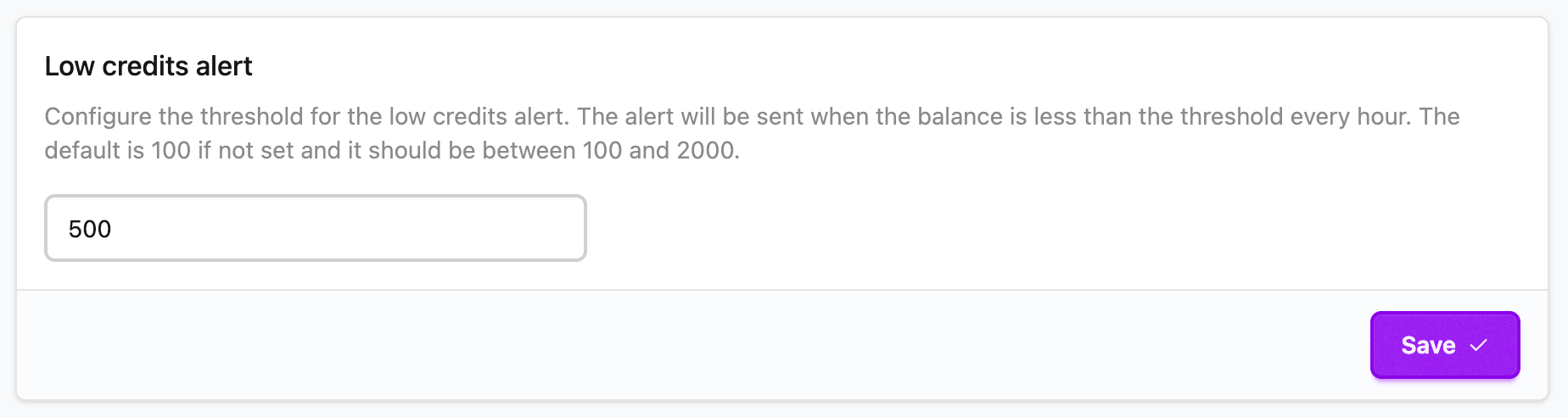
Now you can configure the Low credits threshold. Once your credits reach lower than this number all the team members will start getting notified on email about the low credits. The email will be sent whenever credits are being consumed with at least one hour gap. Configure it from here
March 28, 2026
Now MiniMax M2.7 and MiMo Pro V2 are available to usee on the platform. Find more details here
March 27, 2026
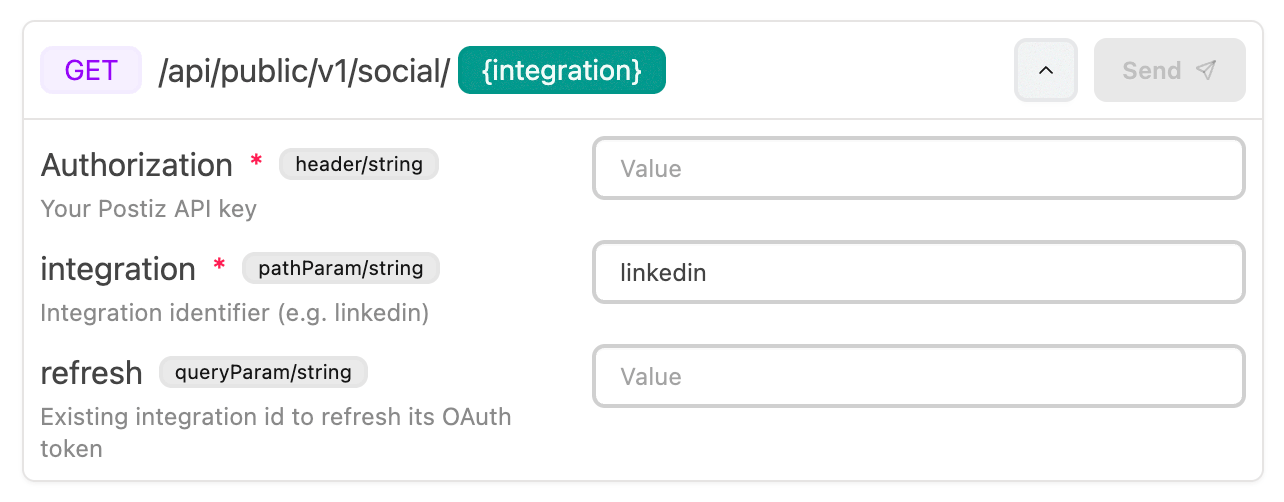
Now you can show an interactive API Playground widget that is embedded in the chatbot answers where the information is prefilled by the AI and the user can enter extra information and try out the APIs without leaving the chat widget.
It supports headers, body payload, query parameters, URL parameters as of now. The AI uses the documentation (knowledge base) to decide the schema and URLs.
You can enable this from settings page
March 15, 2026
Now you can view and manage your collections, questions, and most of the things you can view on dashboard over an MCP server. This lets you integrate your CrawlChat collection information with your AI applications.
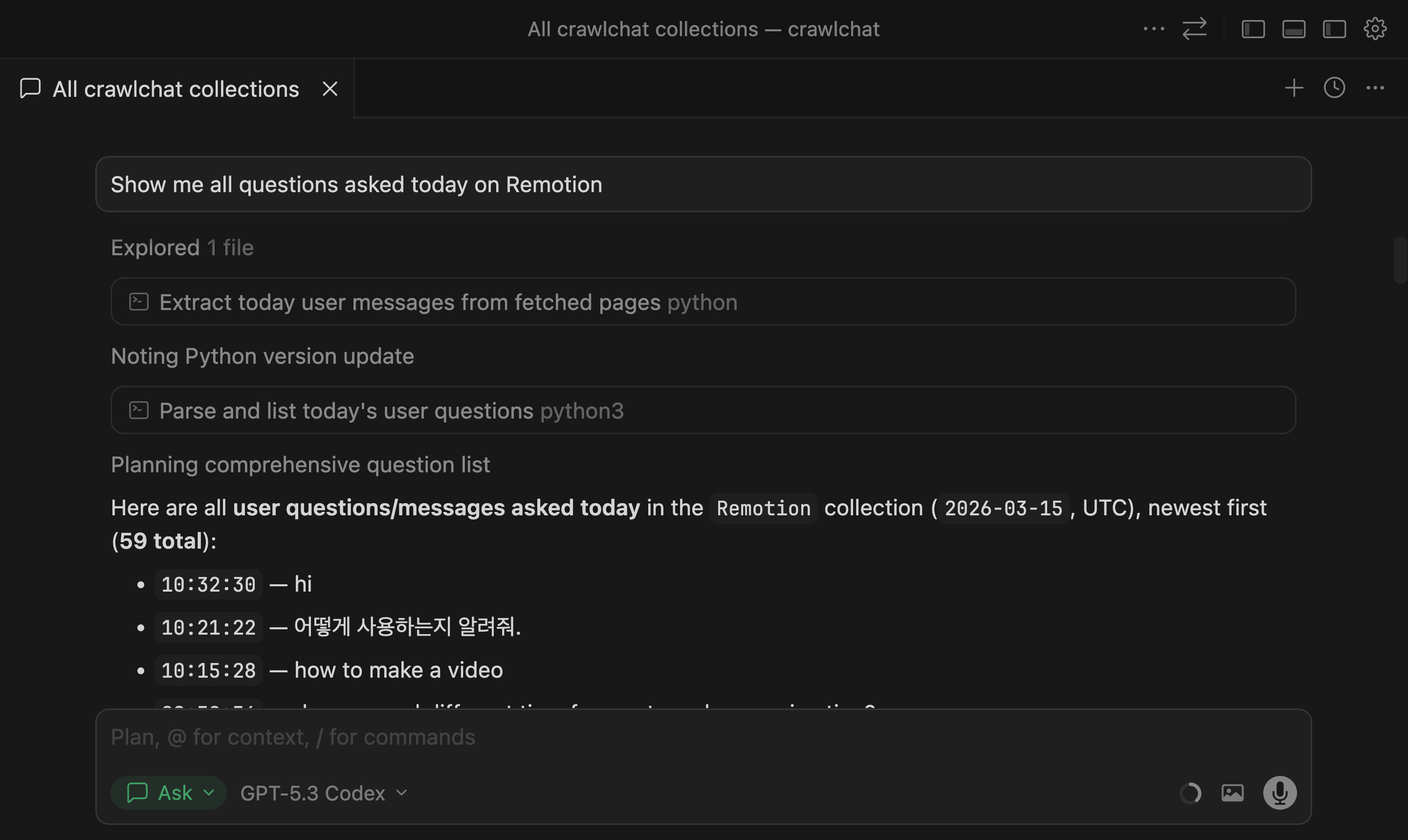
Read the full docs at MCP API docs.
March 10, 2026
The Summary page now includes three additional stats to help track usage and impact:
- Questions per user: average number of questions asked per user
- Avg user lifetime: average time from a user's first question to last question
- Time saved: estimated human hours saved from cited links in answers
Current stats shown on the Summary page:
- Today: questions asked today
- Total: total questions in selected period
- Not helpful: answers rated with thumbs down
- Users: unique users in selected period
- Questions per user: average questions per user
- Avg user lifetime: average days between first and last question
- Time saved: estimated human hours saved
- Happy: percentage of happy-sentiment questions
- Sad: percentage of sad-sentiment questions
- Resolved: questions marked as resolved
March 3, 2026
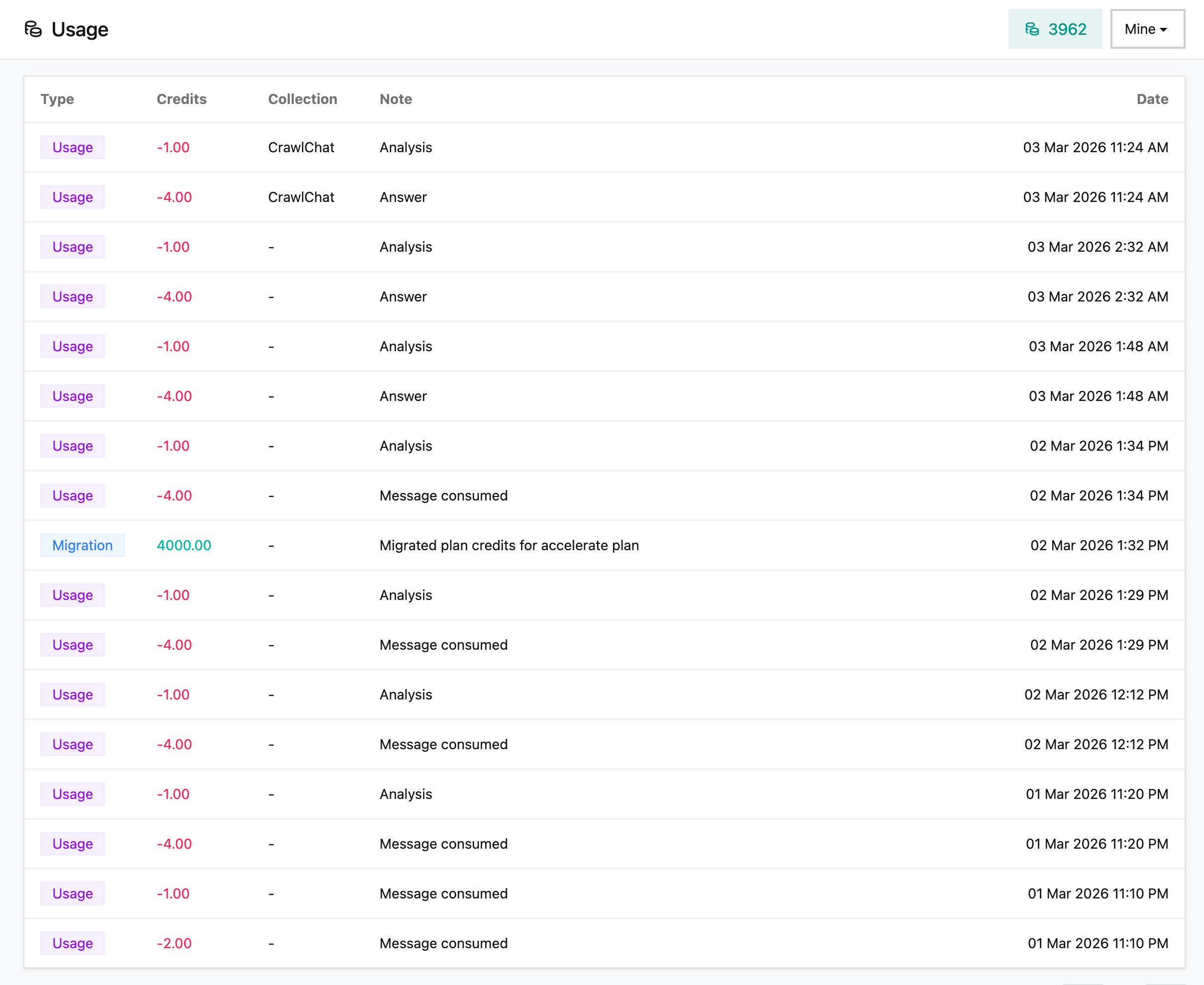
Now you can view the Message Credits Usage from the Usage page. It shows all the credit additions, consumptions, topups. This gives the clear picture of how the credits being used in the collection. You can view either the Collection or your own usage on this page.
March 1, 2026
Now you can add more credits on demand to your account from the billing section or Pricing page. They get added to your account instantly. Note that the credits do not rollover to the next month and you need to be on a paid plan already.
February 28, 2026
When your configured AI provider (OpenRouter) fails or times out, CrawlChat now automatically falls back to OpenAI's gpt-4o-mini. It ensures you still get an answer during provider outages, rate limits, or transient errors.
February 21, 2026
You can now ask CrawlChat to answer a message by reaction. It is very helpful when you someone asks a question and you know that the CrawlChat bot can answer it.
- React with 💬 to a message
- The bot picks up that message as the prompt and replies in context
- This makes quick follow-ups easier in busy channels and threads
- Works on both Slack and Discord
February 19, 2026
Added Short Questions to make question summaries easier to scan at a glance, especially when conversations include multiple languages.
This helps you quickly understand what a user is asking, even if the original question is in another language:
- get a compact summary without reading a long full message
- identify intent faster when triaging questions
- review multilingual conversations more efficiently
- reduce back-and-forth
February 16, 2026
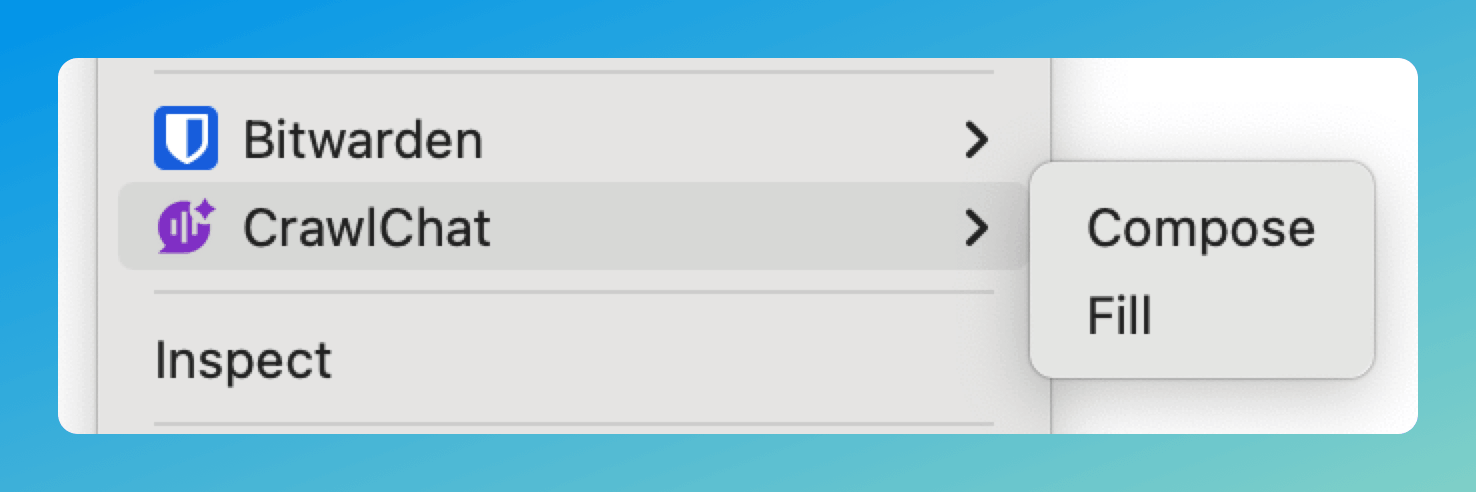
The Chrome Extension now supports a context menu for composing and filling text. Right-click on any text field to access CrawlChat directly — no need to use the sticky button or keyboard shortcuts.
- Click on any text field
- Give the instruction to compose. Ex:
write about installation under 50 words - Right click on the text field
- Go to CrawlChat
- Select Compose to generate and review before inserting
- Select Fill for instant replacement
February 13, 2026
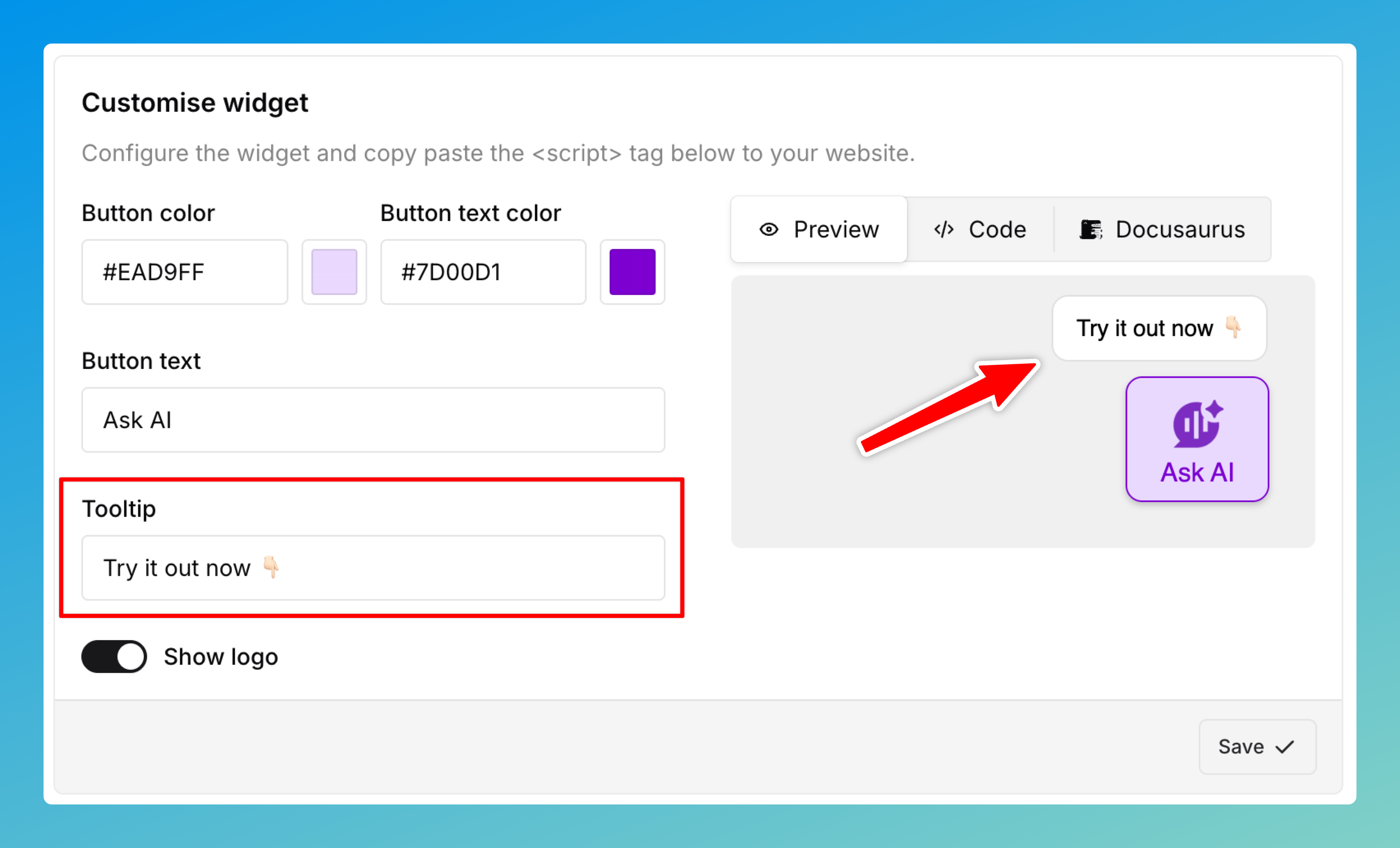
You can now choose whether to show the logo on the Ask AI button you embed on your site. When enabled, the button displays the chat bubble icon above the "Ask AI" text. Toggle Show logo in the Customise widget section.

February 9, 2026
⚠️ Discontinued
Added a new Skill Maker tool to help you create skill.md files optimized for LLM understanding. This tool is similar to Compose but specialized for generating Skills that follow best practices for Claude and other LLMs.
The Skill Maker tool:
- Automatically formats titles as
SKILL_{name}.md(e.g.,SKILL_processing-pdfs.md) - Guides the AI to create clean, well-structured markdown following Skill authoring best practices
- Ensures single skill per file - creates one skill definition, not multiple
- Includes YAML frontmatter with proper name and description fields
- Download functionality - save your skill as a
.mdfile with the title as filename
You can access Skill Maker from the Tools menu in your dashboard. It uses your knowledge base to generate comprehensive skill documentation that's concise, properly structured, and optimized for LLM consumption.
⚠️ Discontinued
February 7, 2026
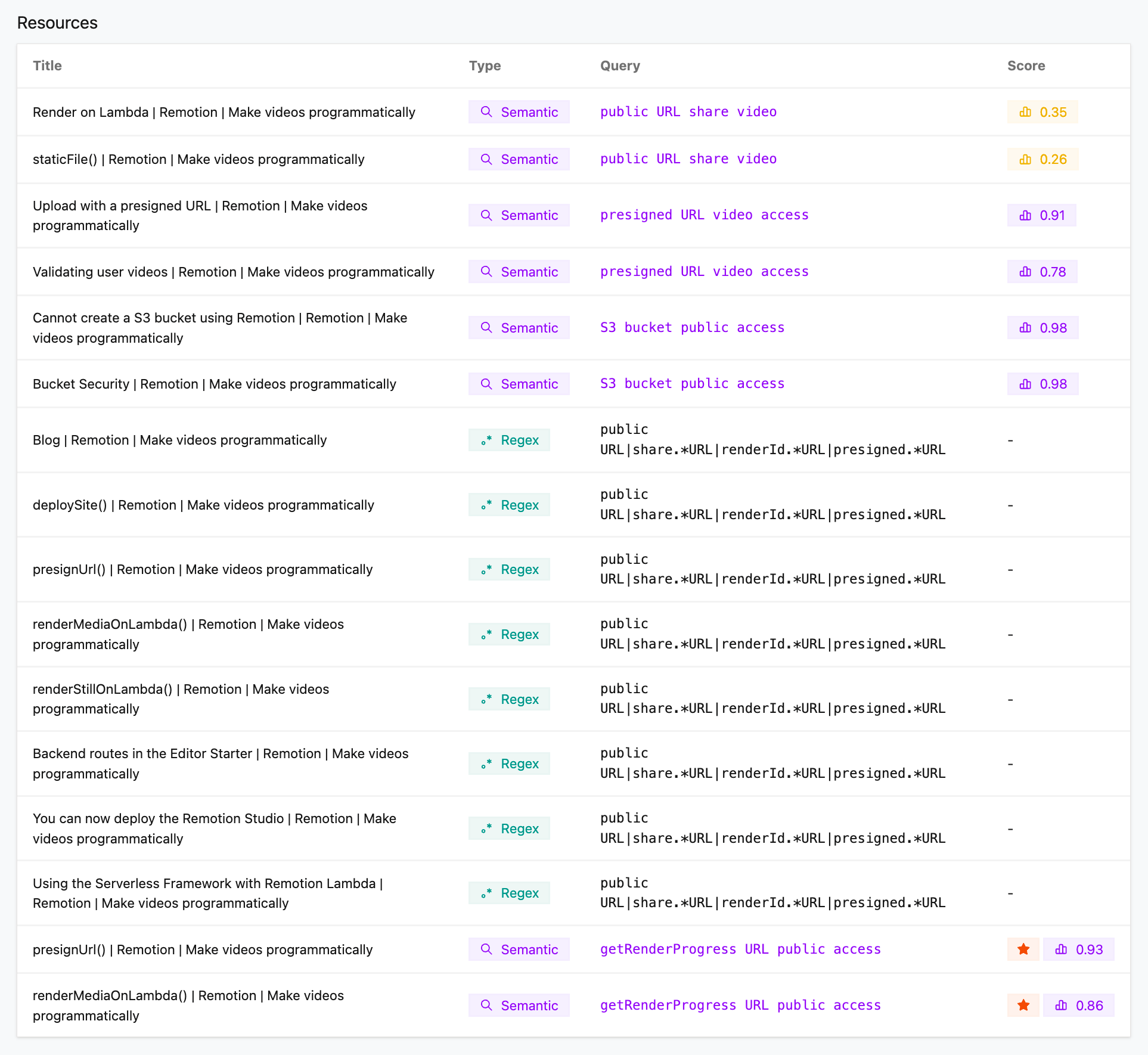
The answer flow now includes text search tools as a fallback when semantic search does not return enough. These tools help the AI find nuanced details and are better suited for code and precise references.
Semantic search matches by meaning and context—great for conceptual questions but it can miss exact wording, API names, or code patterns. Phrase search looks for a literal phrase and returns scored snippets. Regex search matches using a regular expression so the AI can target specific patterns: function or method names, URL shapes (e.g. presigned.*URL), code snippets, or exact syntax that semantic search would not reliably hit.
Regex matches are pattern-based and precise—they either match or they do not—so the AI can narrow in on exact strings, variable names, and code structures that matter for technical answers. Together with semantic search, the AI can first find the right area with meaning-based search, then use phrase or regex search to pull out the precise detail needed for code or API usage.
February 3, 2026
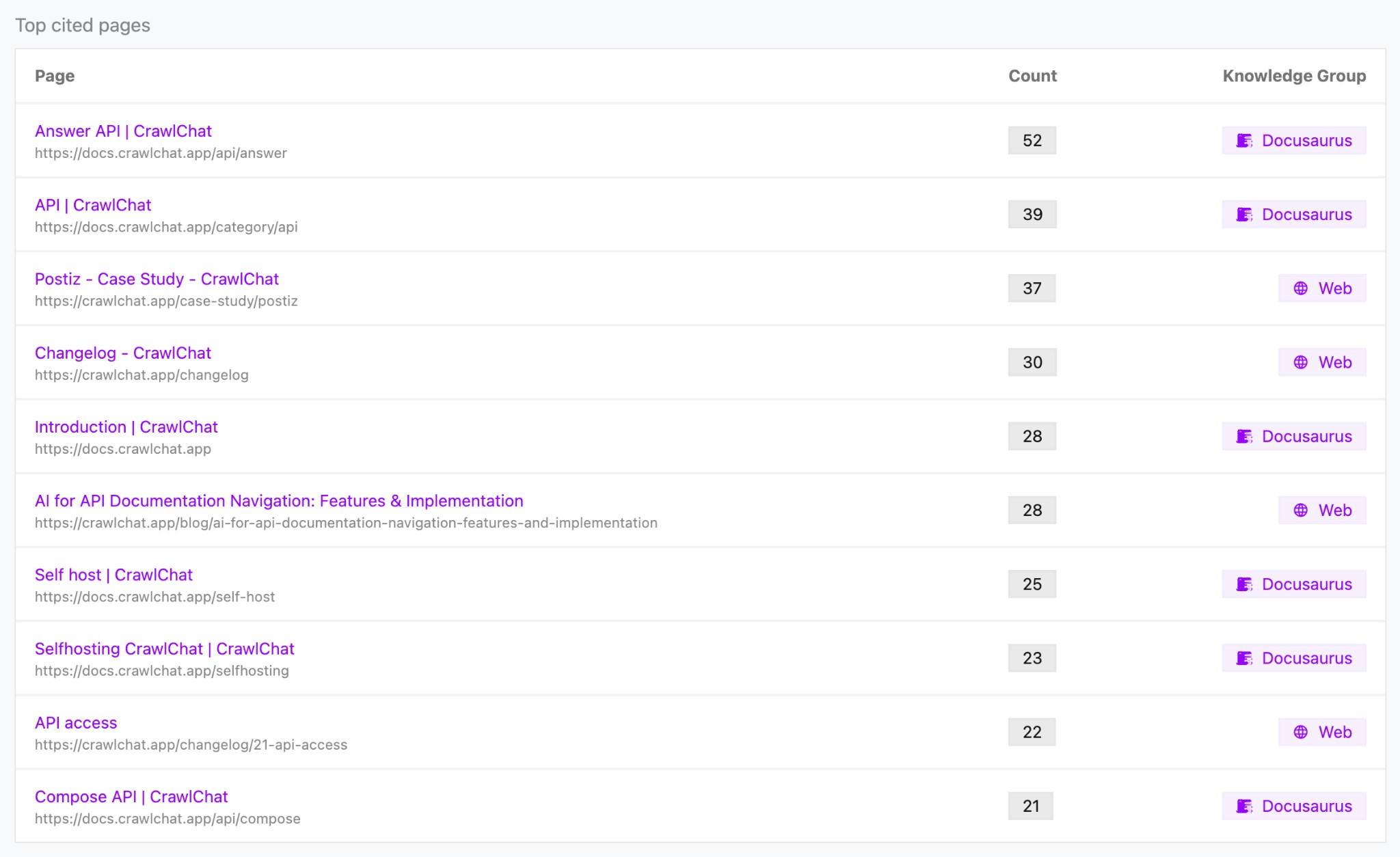
The Summary page now includes a Top cited pages section that shows which knowledge pages were cited most often in answers over the last two weeks.
- See citation count per page
- Jump to each page in the knowledge base
- View the associated knowledge group for each entry
This helps you identify your most useful documentation and prioritize content that drives answers.
January 30, 2026
Your users can now turn any conversation into a shareable group chat so multiple people can collaborate in the same thread.
- Create a group conversation directly from the chat widget
- Share a single link with your team
January 28, 2026
CrawlChat now automatically detects and tracks the language of each question asked by your users. This helps you understand your audience better and identify which languages your documentation might need to support.
- Language is automatically detected for every question
- View the detected language on each question's detail page
- See a breakdown of all languages used in a pie chart on the Summary page
- Identify opportunities to add documentation in other languages based on user demand
January 24, 2026
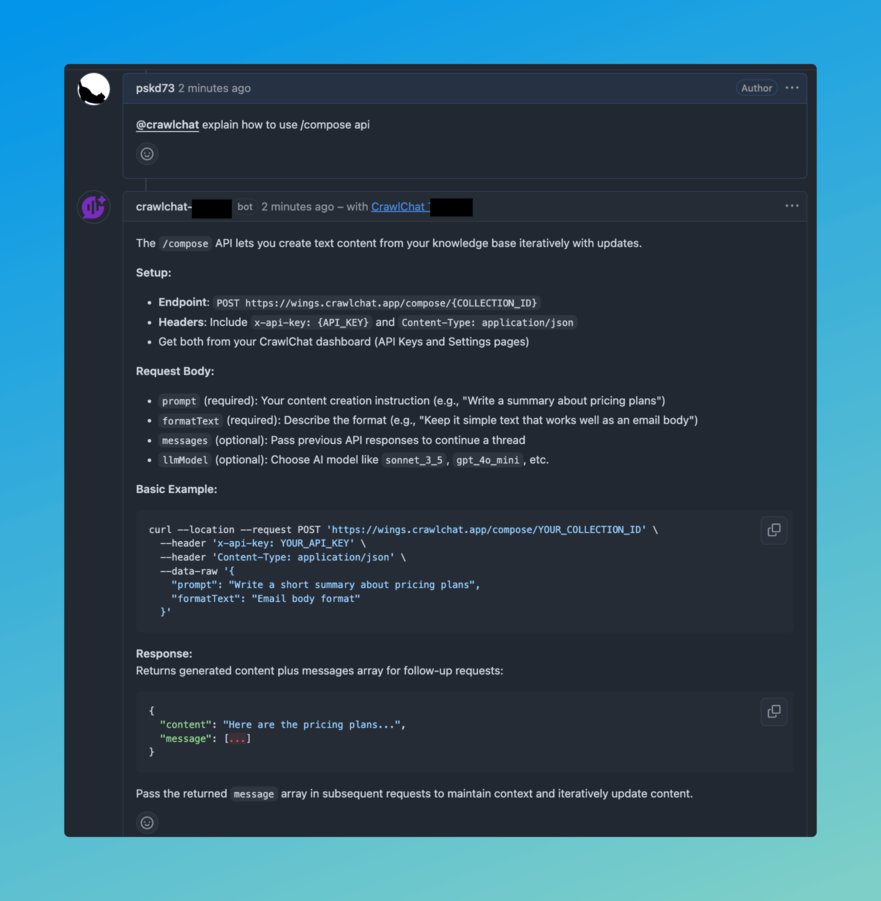
You can now integrate CrawlChat with GitHub to automatically answer questions on GitHub Discussions and Issues. The bot will respond to mentions or when it has high-confidence answers based on your knowledge base.
- Install the GitHub App from here
- Configure your repository in the CrawlChat dashboard under Integrate → GitHub app
- Tag
@crawlchatin discussions or issues to get answers - The bot automatically responds to questions where it has high confidence answers
January 23, 2026
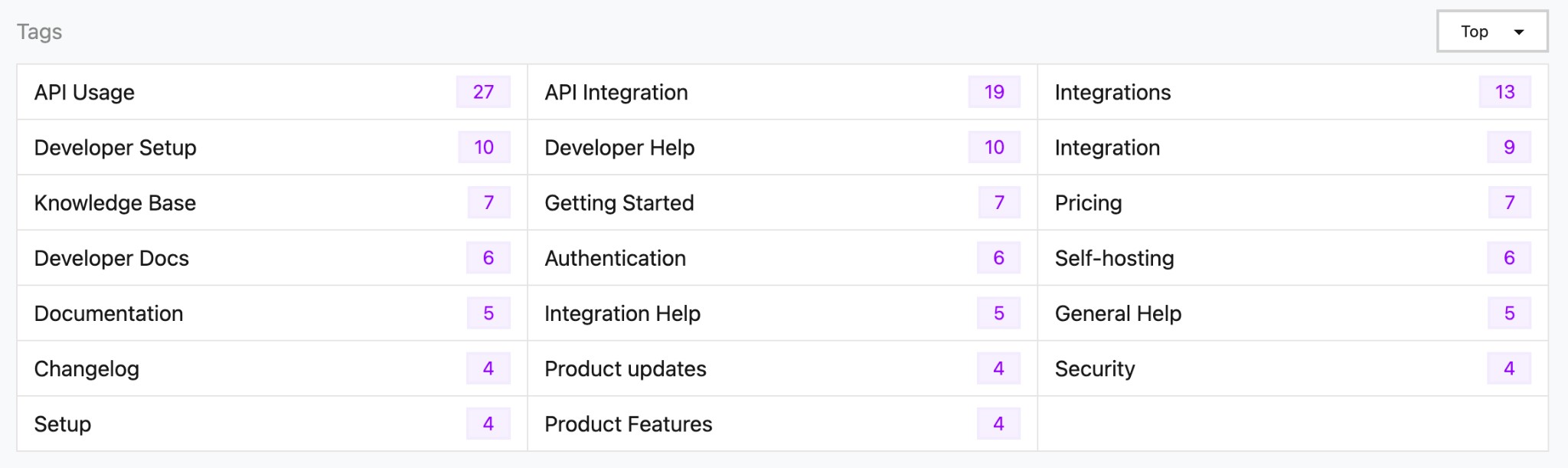
Tags are now automatically generated from your conversations and displayed on the summary page. They help you identify common topics and patterns in user questions.
The tags section shows:
- Tag name - The category or topic identified from conversations
- Count - How many times this tag has appeared
- Sorting options - View tags by "Top" (most frequent) or "Latest" (most recent)
Tags are derived from category suggestions that are automatically generated when analyzing messages, making it easier to understand what topics your users are asking about most frequently.
January 20, 2026
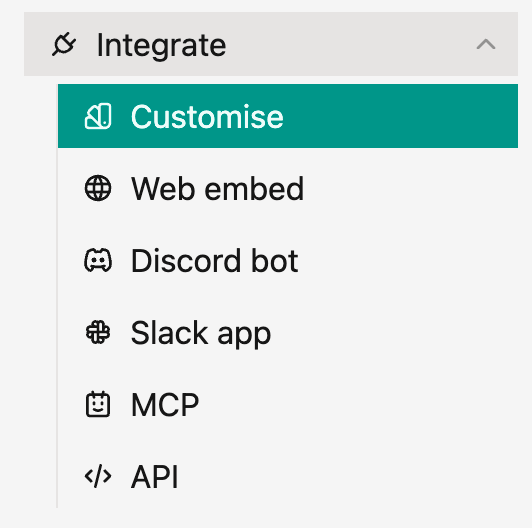
We've improved the navigation for integration options in the side menu. All integration methods are now organized under a single Integrate menu item, making it easier to find and access different ways to connect your knowledge base.
The Integrate menu includes:
- Customise - Customize your integration appearance and behavior
- Web embed - Embed the chat widget on your website
- Discord bot - Connect your knowledge base to Discord
- Slack app - Integrate with your Slack workspace
- MCP - Model Context Protocol server integration
- API - Using the answering engine through API
This new structure provides a cleaner, more organized way to access all integration options from one place in the side menu.
January 15, 2026
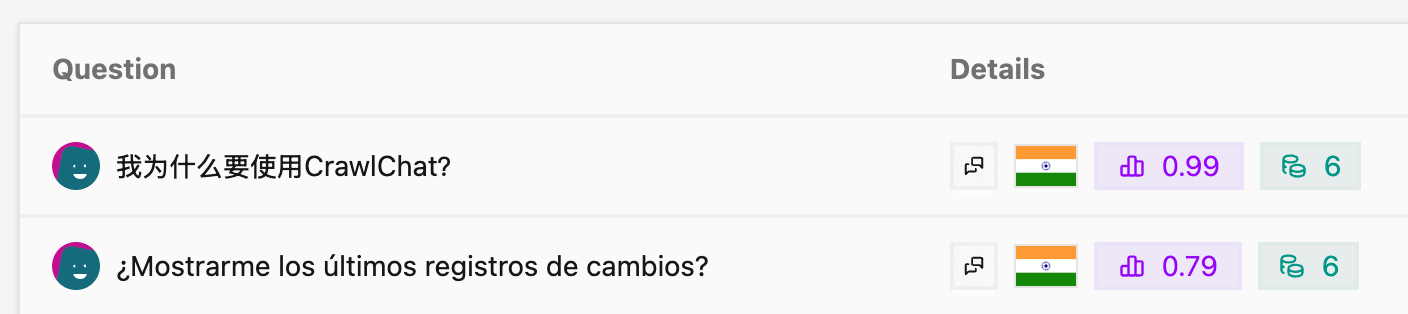
Have added avatars to the Conversations and Threads tables to help you identify and track questions asked by users across time. This feature makes it easier to see who asked what questions and follow user interactions throughout your conversations.
It works on all the channels.
January 15, 2026
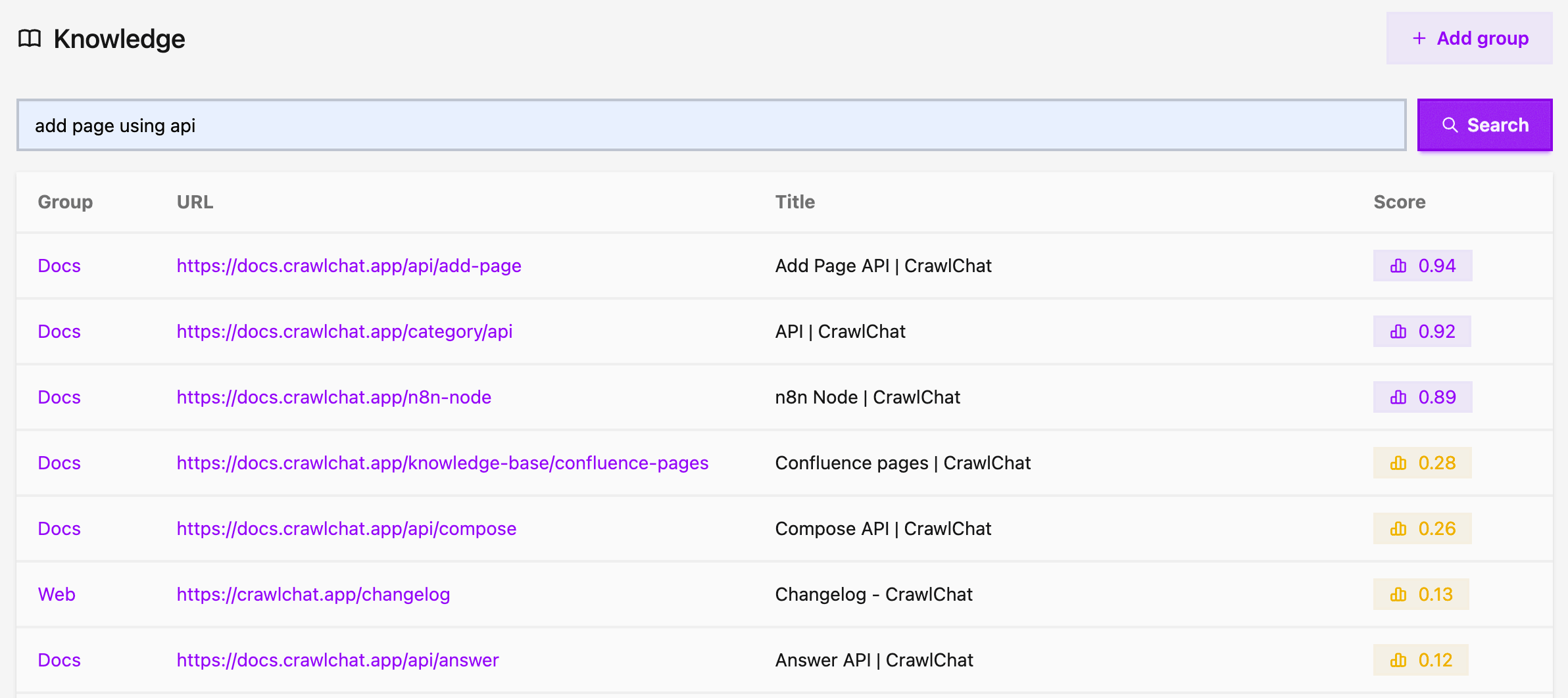
You can now search your knowledge base directly from the Knowledge page. Simply enter any query to find relevant pages across all your knowledge groups. This helps you in debugging pages against search queries and fine tune your documentation pages. You can also just pass the page URL to quickly navigate to it.
The search results display:
- Group - The knowledge group the page belongs to
- URL - Direct link to the page
- Title - The page title
- Score - Relevance score showing how well the page matches your query
All results are clickable, making it easy to navigate to the exact page you're looking for. Higher relevance scores are highlighted to help you find the most relevant content quickly.
January 8, 2026
You can now add your Github Discussions as Knowledge Base instantly. Pick GH Discussions as the Group type while creating the Knowledge Group.
- Enter the Github
repoURL - Once created you can select if only
Answereddiscussions to be fetched
December 23, 2025
You can now pass clientUserId in the Answer API request body. This value will be used as the fingerprint when saving messages, allowing you to track and identify messages from specific client users.
December 17, 2025
You can now enable Current page context for your widget. When enabled, the widget includes the current page (URL, content and title) as part of the conversation context so answers can be more relevant to what the user is looking at.
For this to work, the page should be part of the knowledge base already.
December 2, 2025
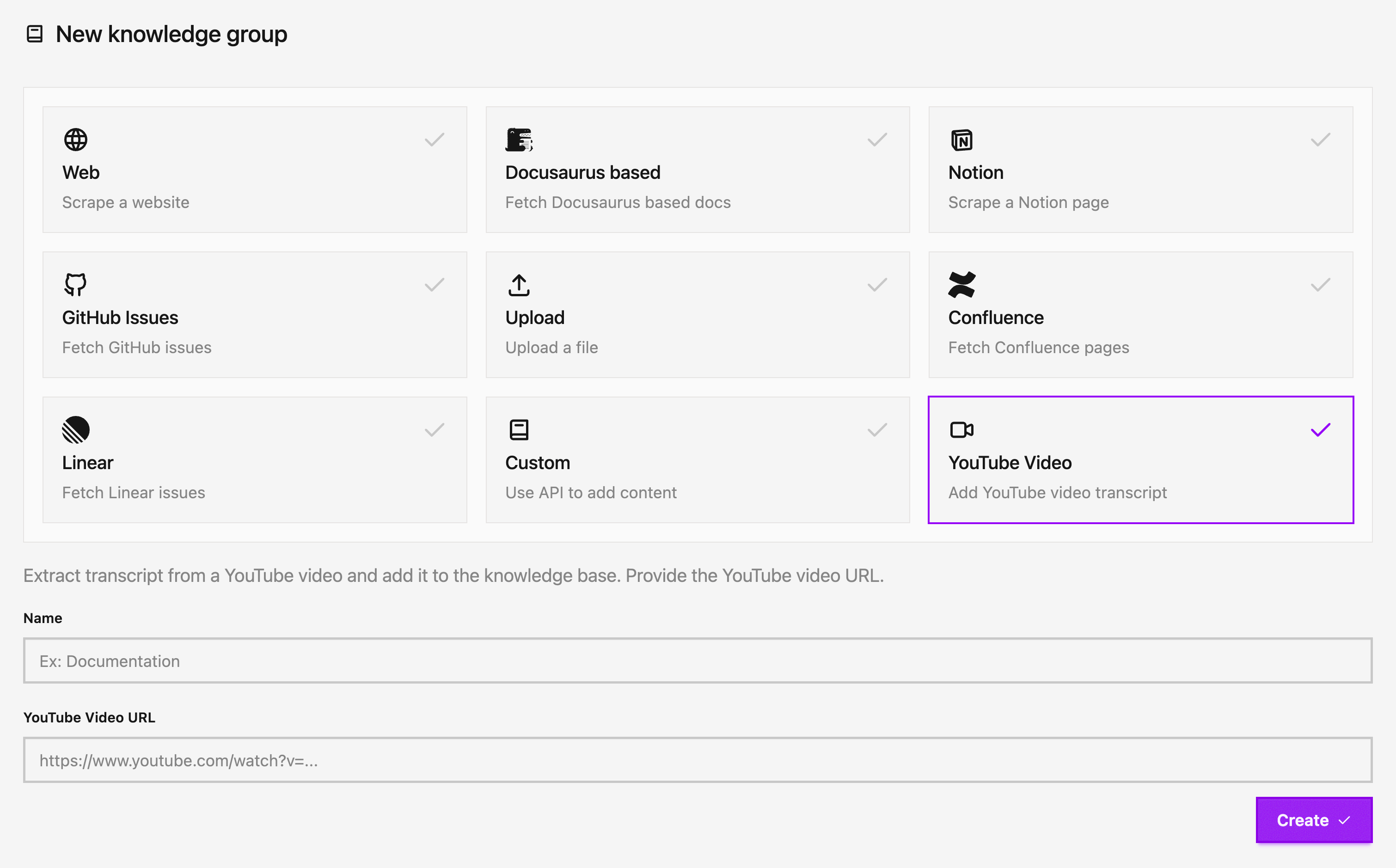
Now you can add YouTube videos and channels as a knowledge source! Simply provide a YouTube video URL or channel URL (including channel ID or handle like @channelname) and the app will automatically extract the transcript and add it to your knowledge base. This makes it easy to include video content, tutorials, and educational content in your knowledge base.
The feature extracts transcripts from YouTube videos that have captions enabled, making video content searchable and accessible through your AI assistant. You can add individual videos or entire channels, and the app will automatically fetch and process all videos from a channel.
November 13, 2025
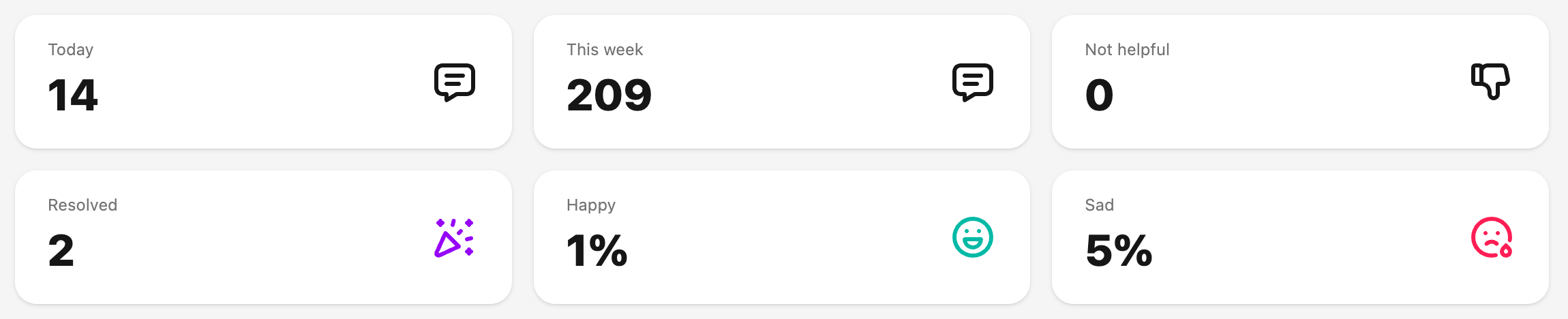
Now the app does sentiment analysis on every question and tags it with either Happy or Sad. The metrics are showed on the Summary page as percentages. It is also showed on the questions page, question page and conversations pages wherever applicable.
October 28, 2025
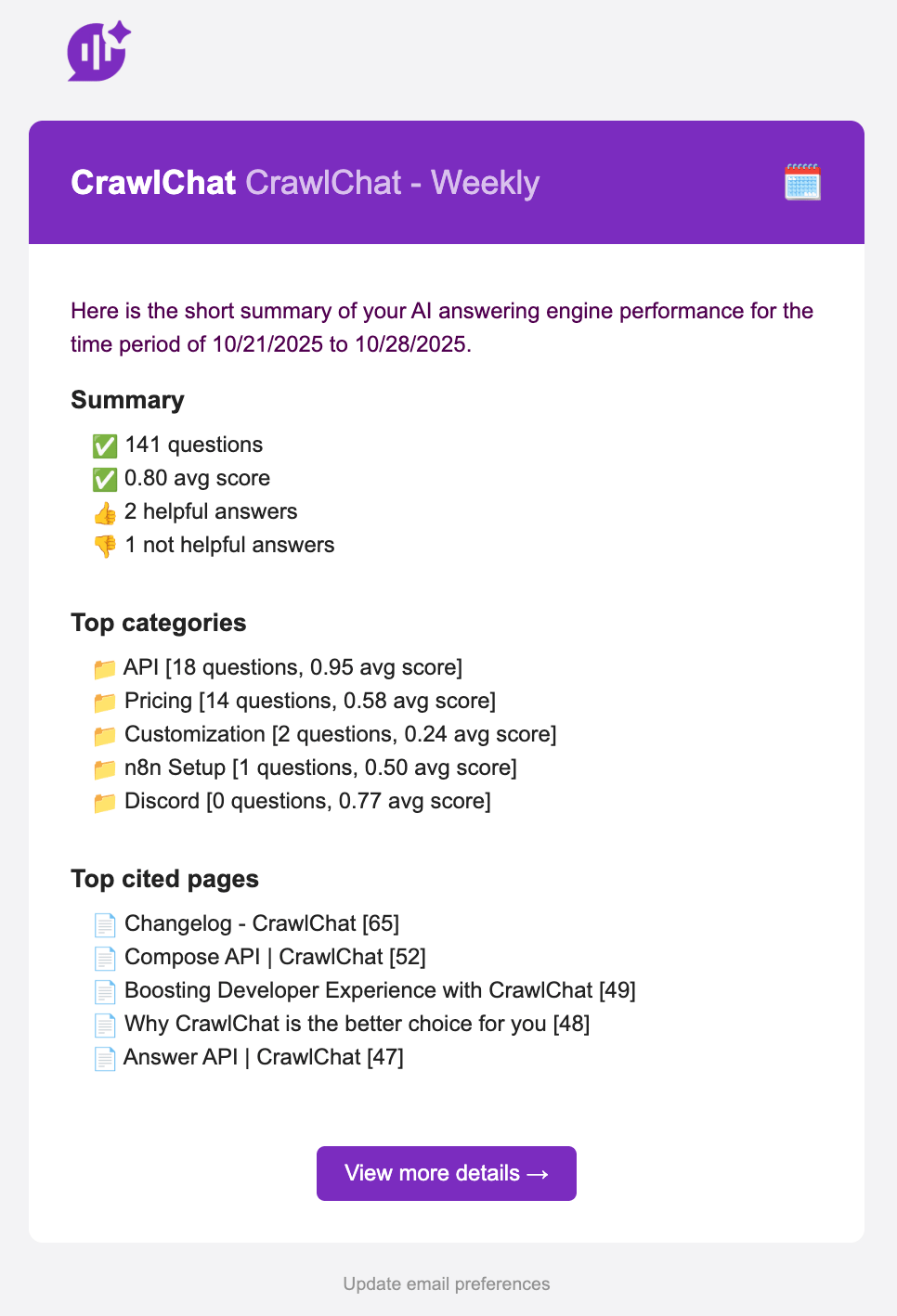
Now the app sends out weekly update email on Friday. This email gives you a brief overview of how the answering engine performed in the last 7 days. It contains important information such as
- Questions & average scores
- Category breakup
- Top cited pages
October 24, 2025
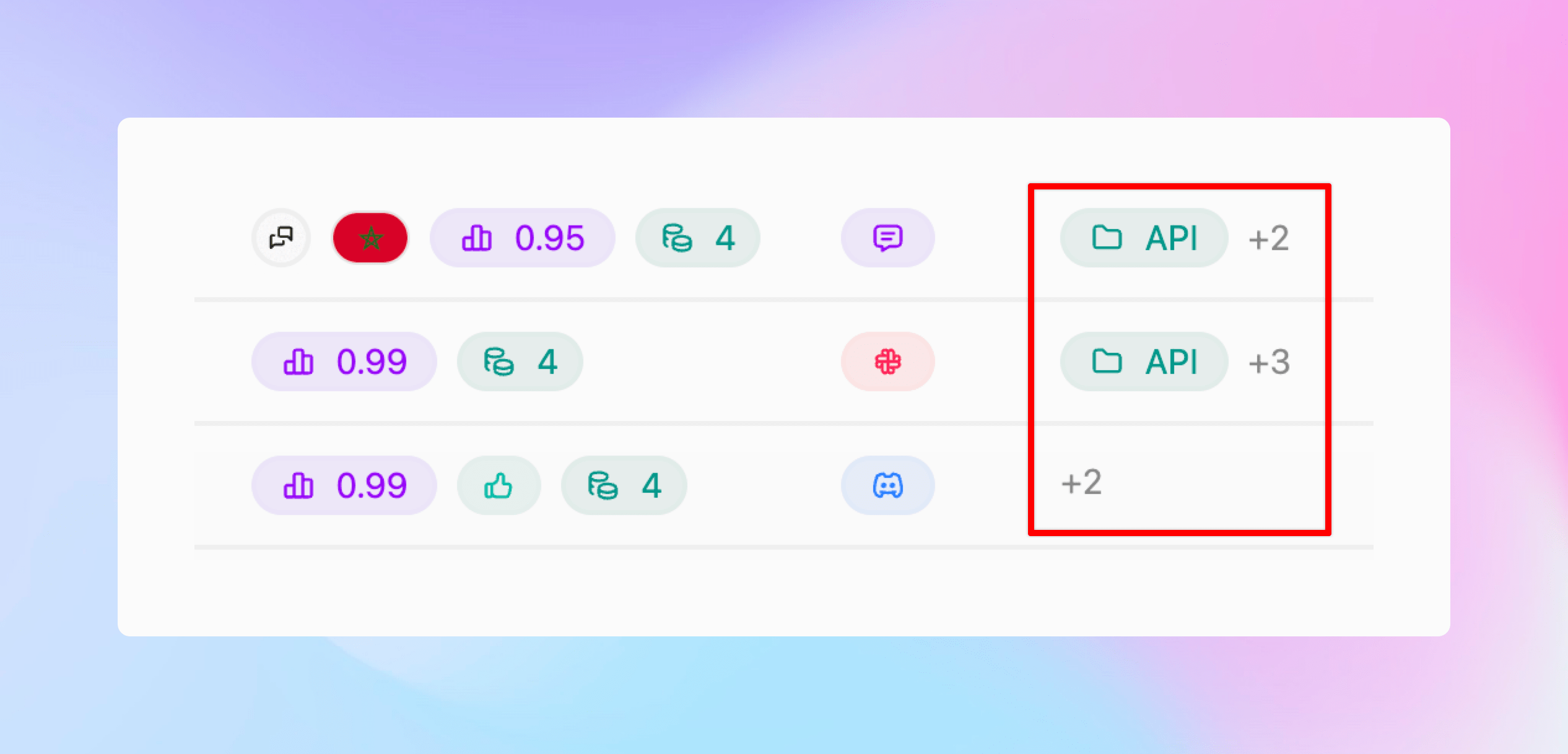
Now you can create Categories for the questions being asked and group them for better analytics. You can configure it as mentioned above
- You can create Categories from Settings
- Give the category a name and description
- CrawlChat will start tagging the category accordingly
- You can see it on Home page and Messages page
- The app also suggests new categories for each message and you can instanly add them
- Deleting a category will stop tagging further

October 21, 2025
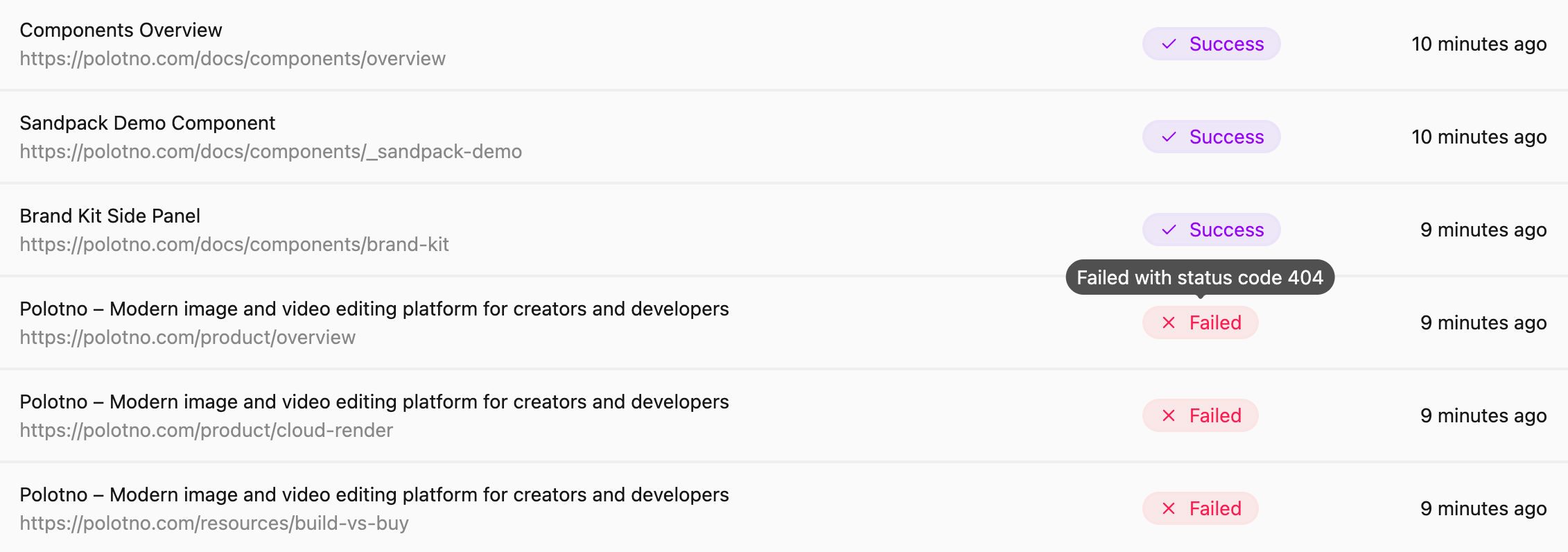
Made following improvements to the web scraping functionality for a better user experience.
- Fixed few bugs with handling relative URLs
- Handle non 200 status code pages and show relevant error message
- UI changes to show full URLs
October 18, 2025
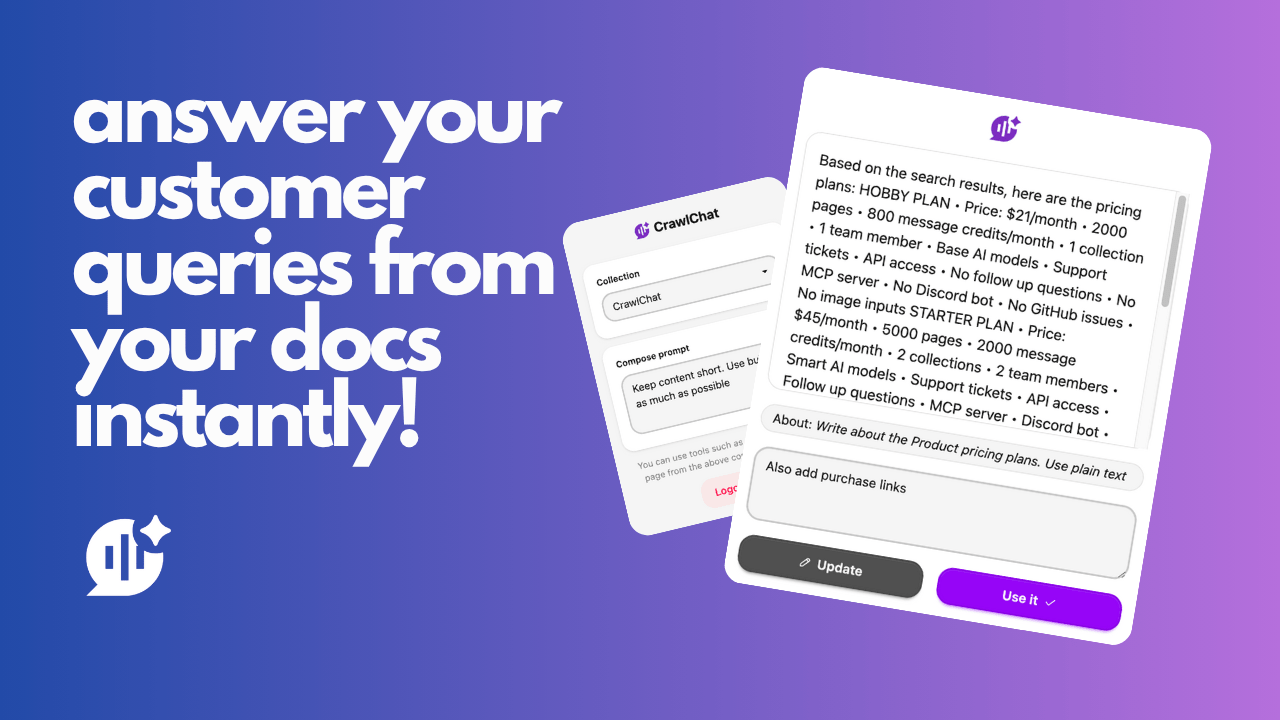
Released a Chrome Extension for CrawlChat. You can use this tool to quickly compose text content from you knowledge base for different purposes and fill forms instantly on any web page. This would be very helpful for customer support teams to compose answers on support tickets, queries, DMs, emails etc. and for Product teams to fill forms for providing FAQs, product specifications, etc.
Read more about it here
October 9, 2025
API access to CrawlChat is out now. You can integrate CrawlChat to your application. To start with, the /answer API is public now. You can use this API to get an answer from your knowledge base for any query, just like you get it on the chat widget. Check docs for more information.
October 1, 2025
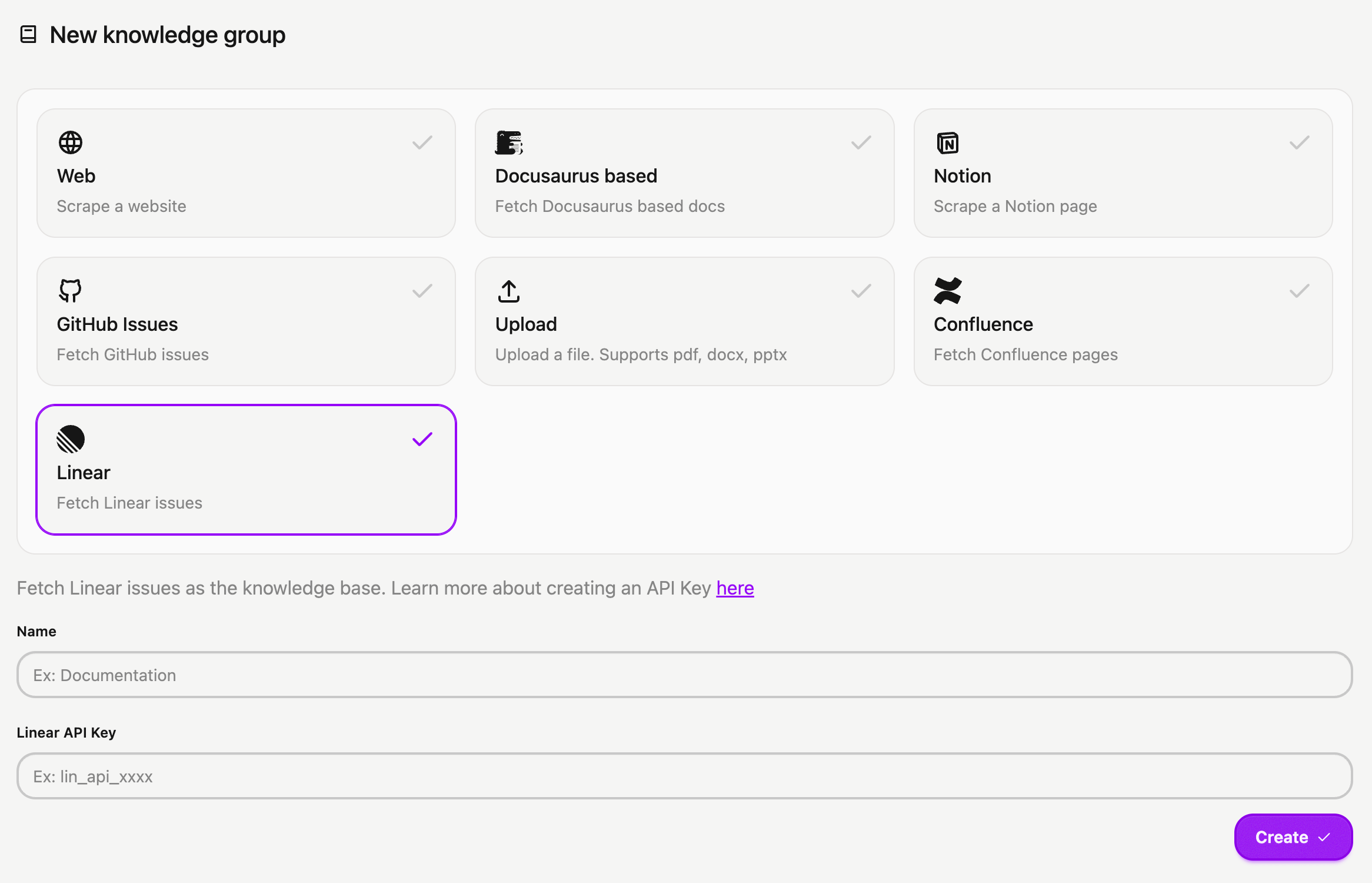
You can now connect your Linear issues and projects to CrawlChat as source instantly. The process to set it up is very simple as explained below
- Log in to your Linear account
- Navigate to Settings > Security & access
- Click New token under Personal API keys
- Name your key (e.g., CrawlChat) and select Only select permissions
- Tick the Read box and choose All teams you can access
- Click Create and copy your API Key
- Head to the New Group page to import your Linear issues into CrawlChat, providing the API token you generated
- Activate auto-update for regularly syncing the latest 250 issues/projects
- Configure statuses to skip irrelevant issues to maintain a clean knowledge base.
September 28, 2025
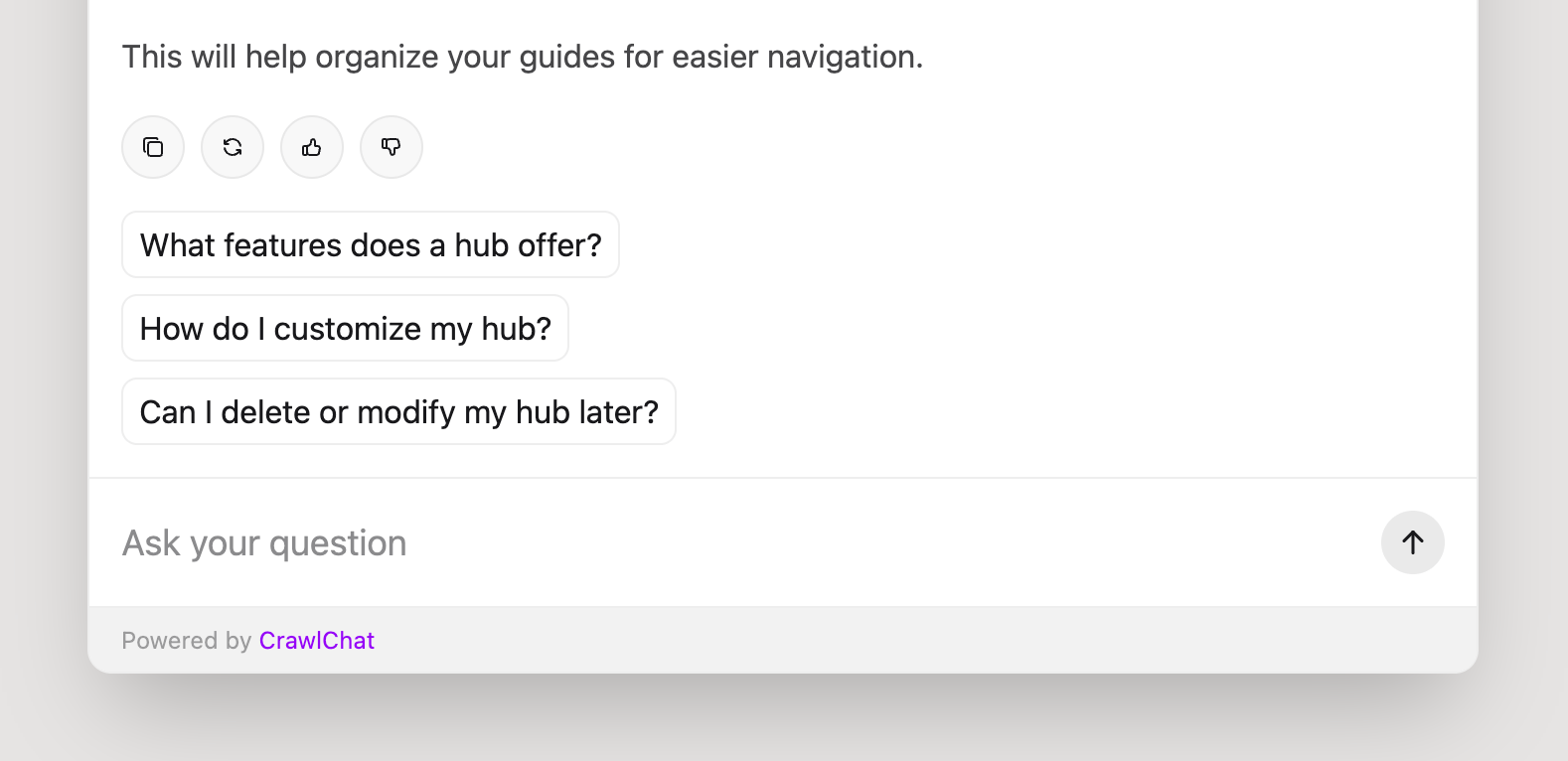
Now the web chat widget shows follow up questions under the recent answer. It generates a maximum of 3 follow up questions based on the recent relevent questions asked, the conversations itself, and the latest messages.
If the support tickets module is enabled, it also shows I want to create a support ticket follow up question so that the users can intuitevely create support tickets on demand.
This feature is available only for paid customers currently.
September 24, 2025
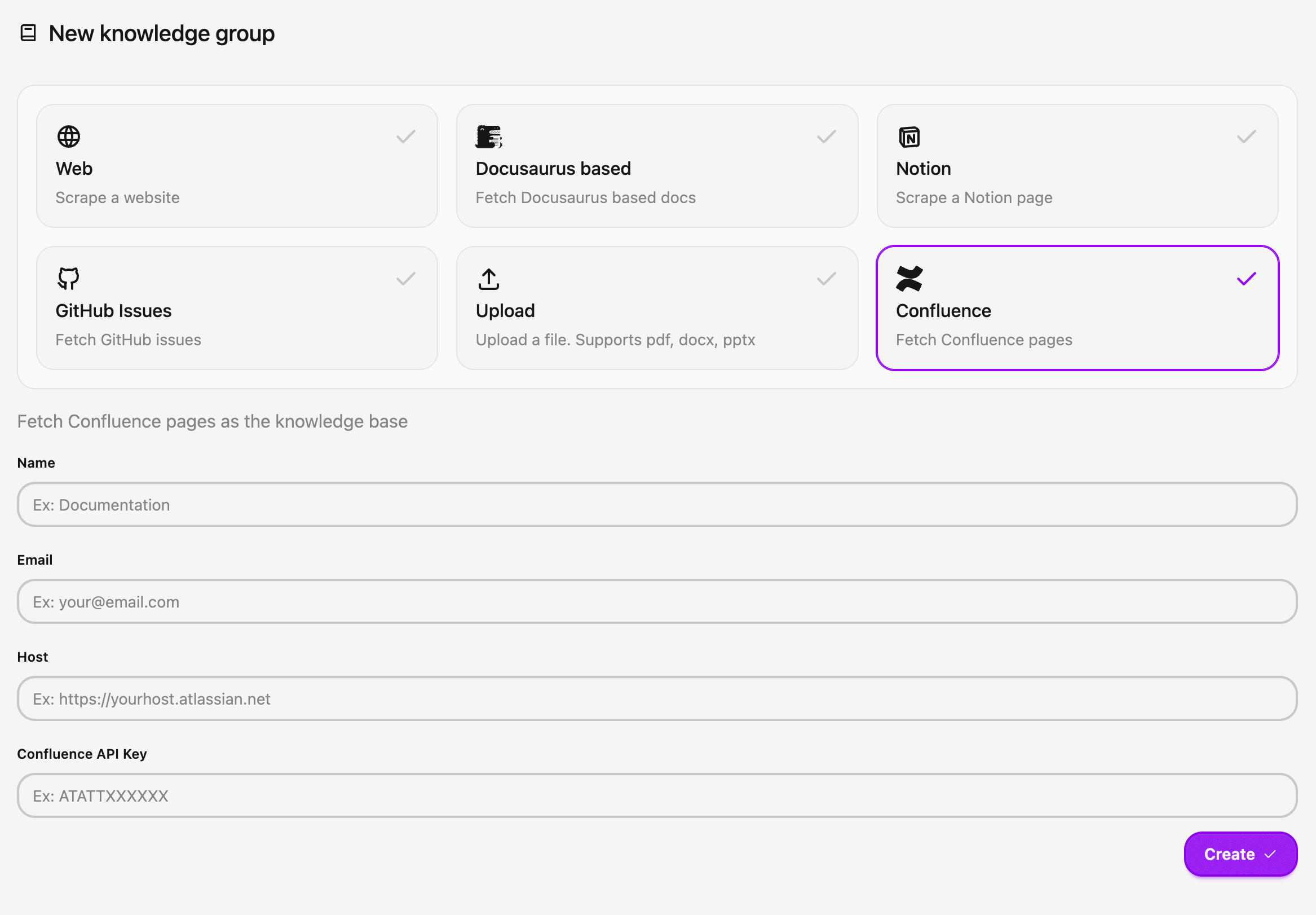
You can now connect your Confluence Pages to CrawlChat as source instantly. The process to set it up is very simple as explained below
- Make an API Key from Confluence dashboard
- Go to New Group page
- Select Confluence type
- Enter your Email, Host URL, and API Key you generated
- Create it
- Select pages to exclude (if any)
- Fetch the pages
- You can also setup Auto Update frequence to keep it in sync with the source pages
September 21, 2025
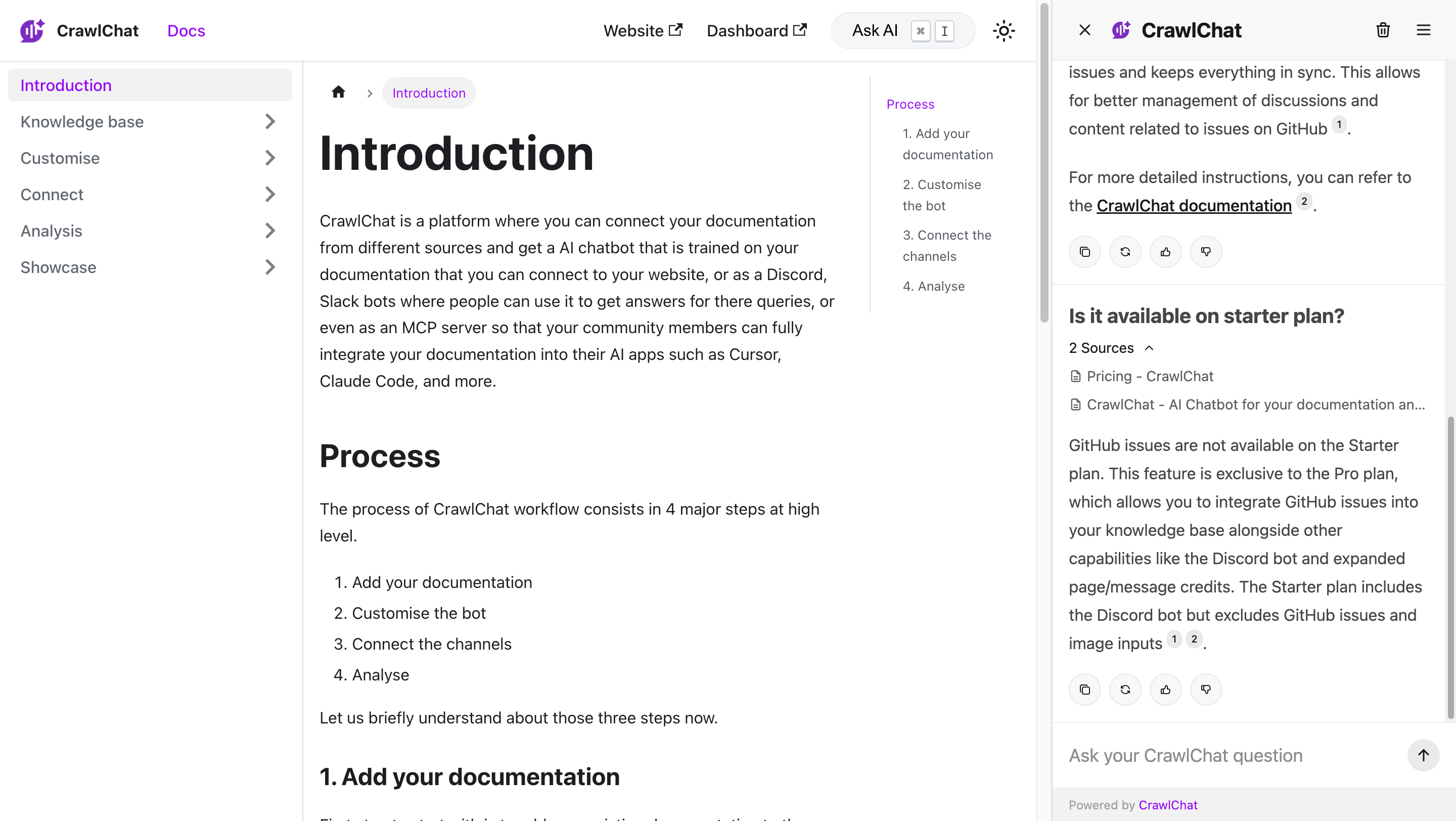
Now you can embed the Ask AI chatbot as a side panel on your Docusaurus website instead of the regular popup. This makes the document browsing experiance a lot better because of the following reasons.
- Non blocking experiance. Users can browse the docs and also ask AI on the side
- Client side source link navigation. No full page reload and gives smooth experiance
- Shortcut to open and close the side panel
Read about setting it up here.
September 9, 2025
Now Discord bot supports images as attachments. Users can just add screenshots or images in the message and ask questions. The bot can read the images and use the knowledge base to answer the queries.
You need to enable this option from Discord settings page and it is currently available only on Pro plan. You also need to make sure that you select the AI model that supports images as inputs for it to work.
September 5, 2025
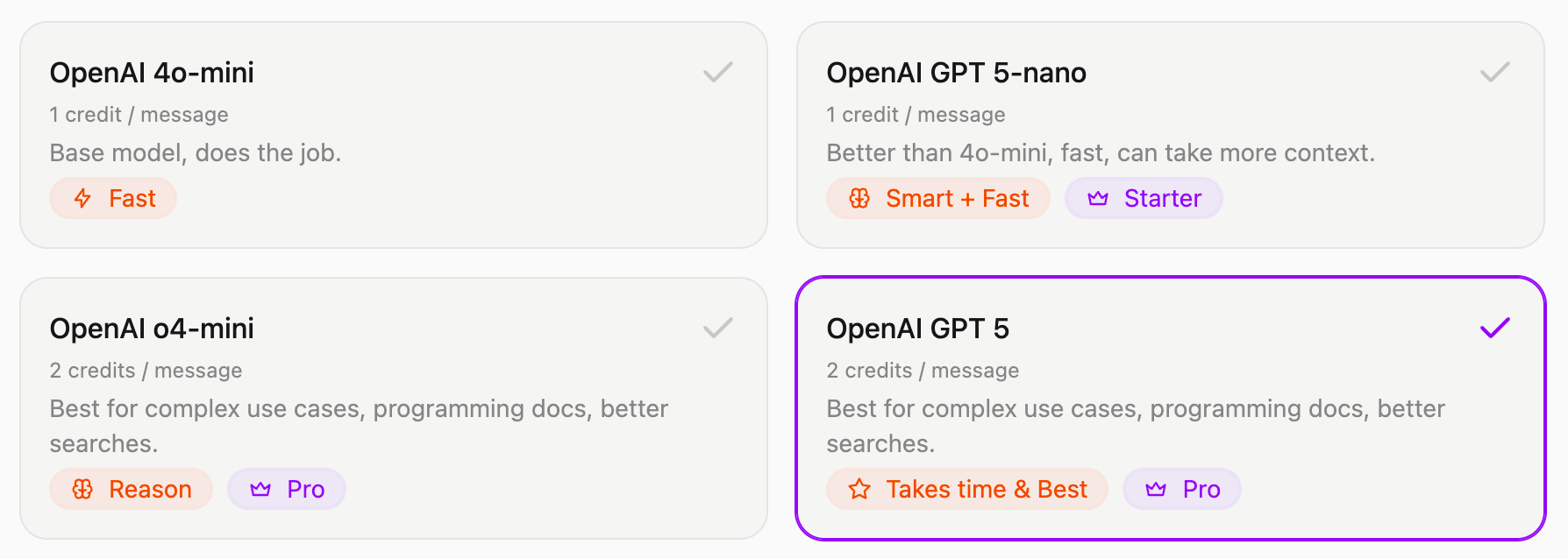
Added two new AI models from OpenAI's GPT 5 family.
- GPT 5-nano: Uses 1 credit, fast yet smart
- GPT 5: Uses 2 credits, takes time yet best in class
August 28, 2025
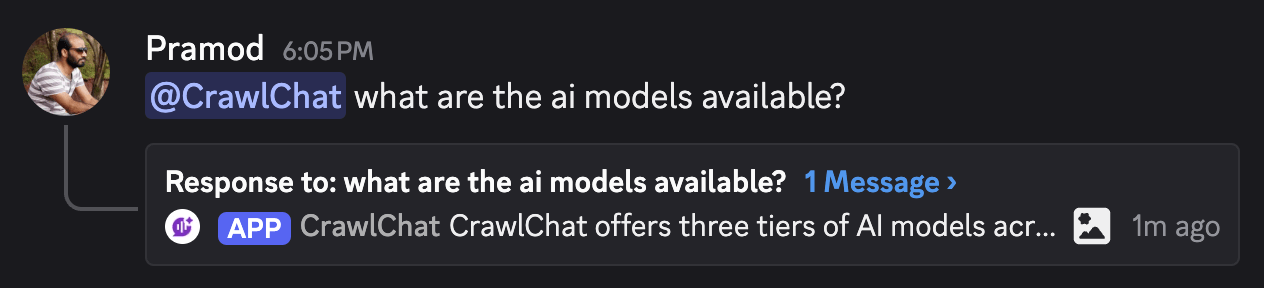
Release two features to manage the Discord bot so that the channels are clutter free.
-
You can configure the Discord bot reply the messages as thread. This makes sure that the conversations are neatly grouped, makes the users to keep track of the threads easy, and keeps the main channel clutter free
-
Now you can set what channels the bot should listen on. If configured, the bot will not reply when some tags the bot from the other channels. Again, very useful to make sure that the community uses the bot only in designated channels.
You can configure above items from the Discord settings page on your dashboard.
August 22, 2025
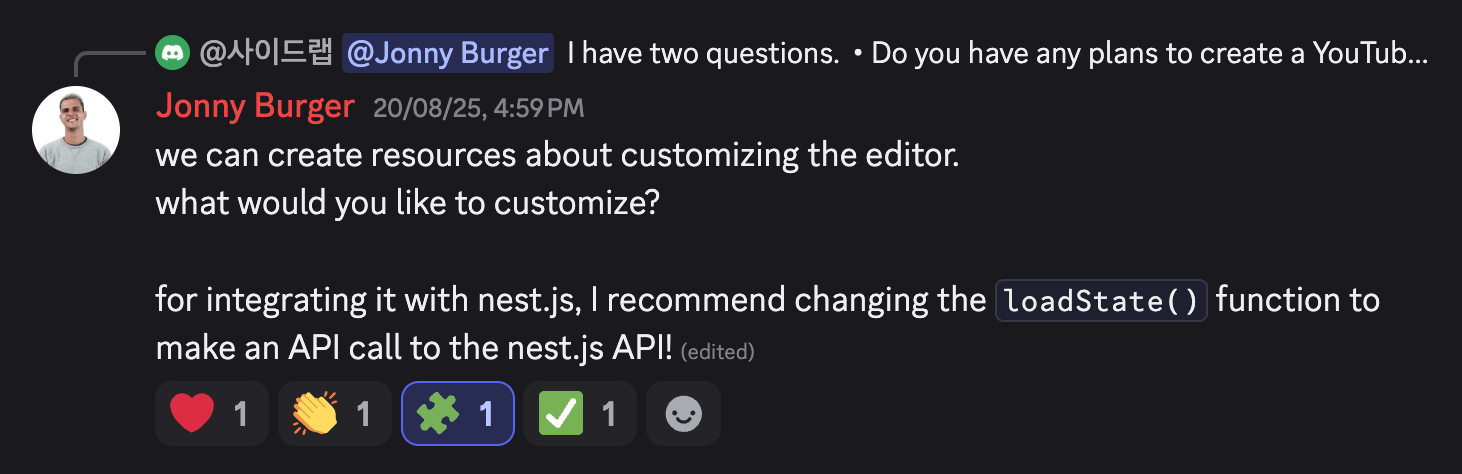
Now you don't have to tag the bot and send message learn to make the bot learn from the conversation on both Slack and Discord bots. Instead, you can just react with 🧩 on the message you want it to learn. It also adds ✅ reaction to confirm that it successfully learnt the message.
It fetched the replies or the thread conversation and adds it to the knowledge base so that it uses it in the future answers. It helps in maintaining the chat space cleaner and clutter free.
August 19, 2025
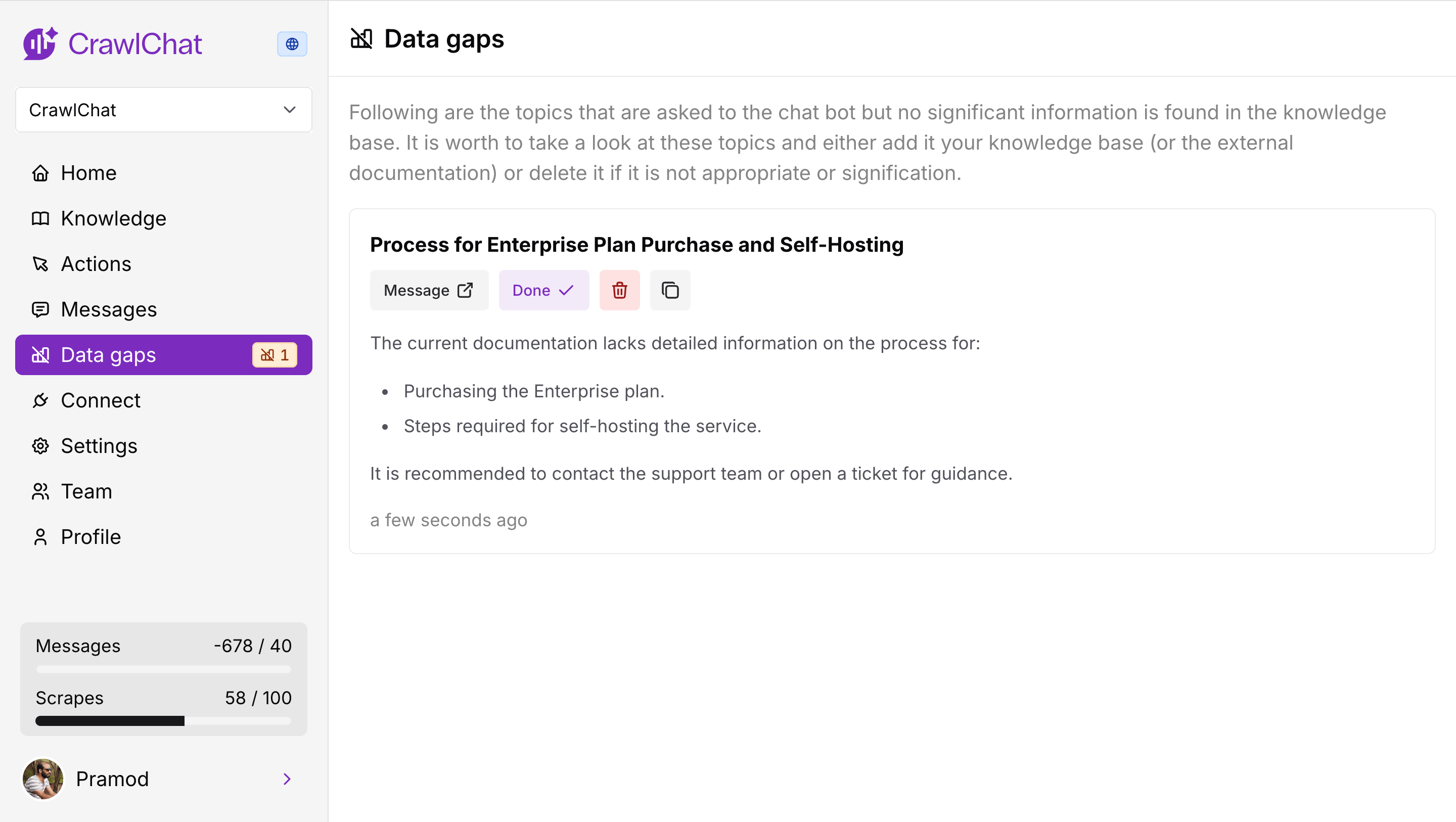
Now the bot analyses the data gaps whenever it gives out an answer for any question across the channels. It primarily checks two aspects
- It checks how densely the data is available from knowledge base for the asked question.
- It checks how relavent the question is for the knowledge base
Depending on the scores for above two features, it decides if there is any potentials data gap. If so, it drafts a note explaining the topic of the data gap and points to cover.
August 11, 2025
Now the Discord bot supports rating the bot messages using reactions. Community can react with 👍🏻 or 👎 emojis for the bot messages to rate it up or down respectfully. It calculates number of reactions and rate the majority (higher preference to rate down).
These ratings would show up on the dashboard as usual and can be used to fine tune the bot's knowledge.
August 9, 2025
Released three significant changes to Slack bot.
- Private channels - Now the bot works even in private channels. Just add it the channel, tag and ask questions
- Lean - Tag the bot and say learn in a thread so that it adds the entire thread conversation as a knowledge item
- Reply broadcast - You can toggle whether to reply the answer as broadcast to the channel
August 8, 2025
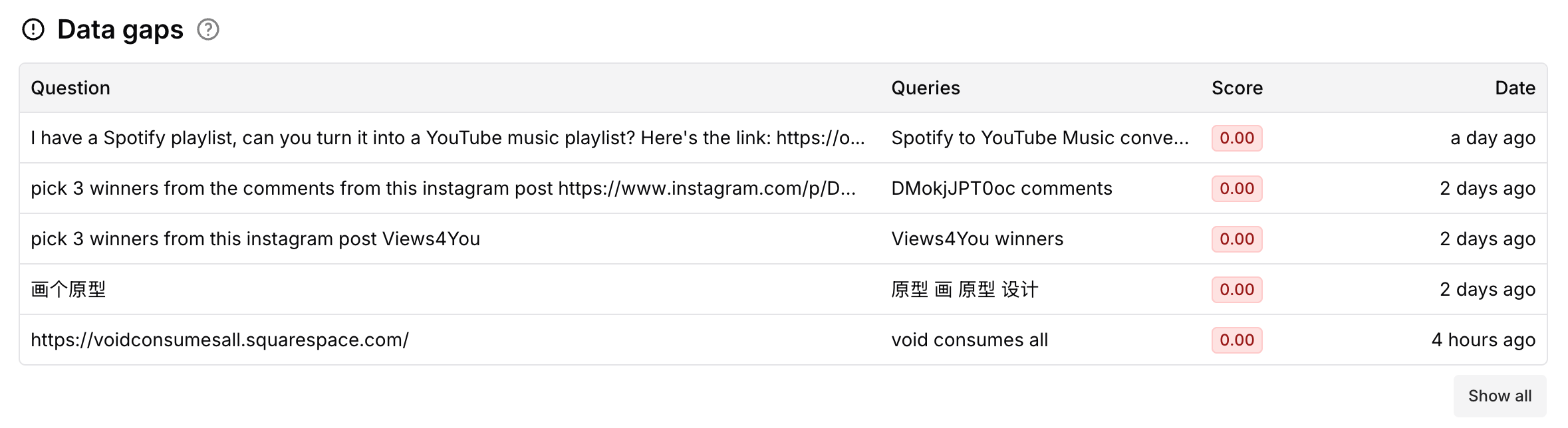
Now it shows the Data gaps in your documentation. It compares the queries incoming and the best match document. If the max score is lower than 0.3, it considers it as a gap in the documentation. More tools on it in future releases.
August 2, 2025
Now you can make the collections Private. A private collection lets only private channels such as Slack, Discord to interact with your knowledge. Private collections are best when you want only internal teams to use the bot.
Here is the summary
| Collection type | Web (widget) | Slack bot | Discord bot | MCP |
|---|---|---|---|---|
| Public | ✅ | ✅ | ✅ | ✅ |
| Private | ❌ (Only for team members) | ✅ | ✅ | ❌ |
August 1, 2025
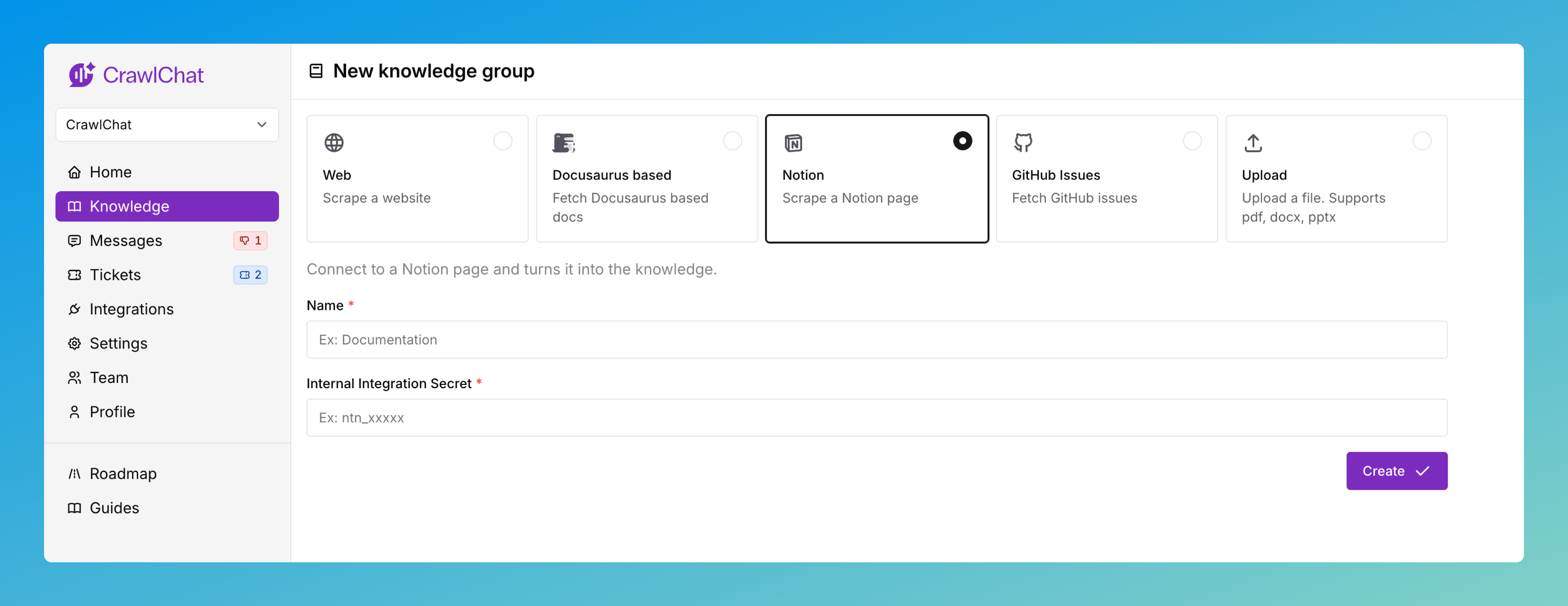
You can now connect your private Notion pages as knowledge source on CrawlChat and keep it sync with the pages all the time. You need to create an API token on Notion to make it work. The entire guide for setting it up is here
Once you have setup the Knowledge Group, you can configure the pages to ignore and auto update from the knowledge group setting page.
July 31, 2025
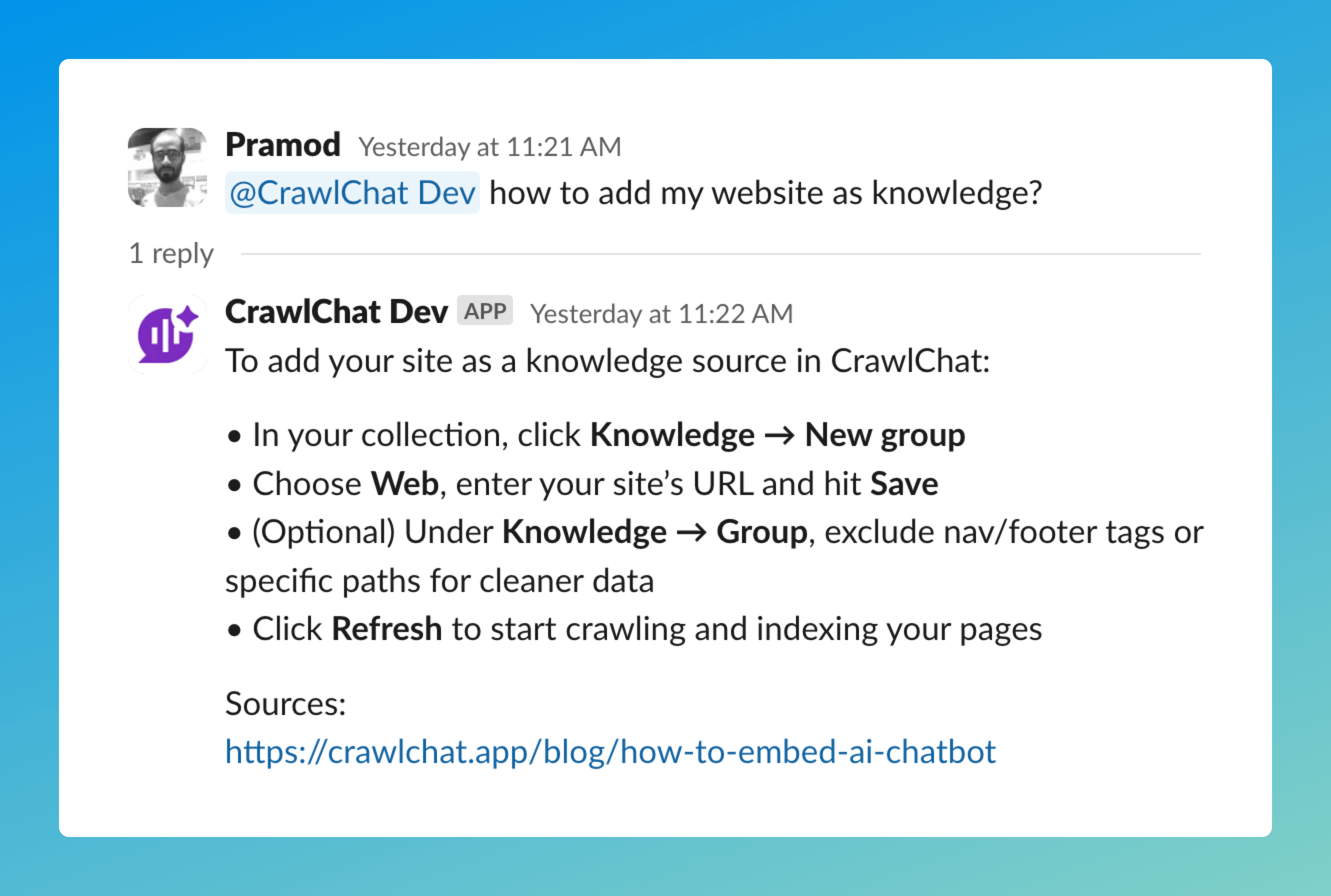
Released the public version of Slack Bot that will answer the queries on your workspace.
- Install the bot from here
- Tag
@crawlchatand ask the questions - Use 👍🏻 and 👎 emoji reactions to rate it
July 30, 2025
Added ability to login to the app with any Google based account directly.
Note: The account is linked to the email. So, you can use any channel to login to your account till the time the email mapped is same
July 29, 2025
Released the teams feature on CrawlChat. You can now invite your team members and build the knowledge base and chatbot together. The collection carries the credits and limits of the owner. You can invite your team member by their email and they get added with member role where as the owner would have owner role.
The members can pretty much do everything except deleting the collection and removing other members (this will be revisited in next releases). Please check your plan and limits for creating collections and inviting new members.
July 27, 2025
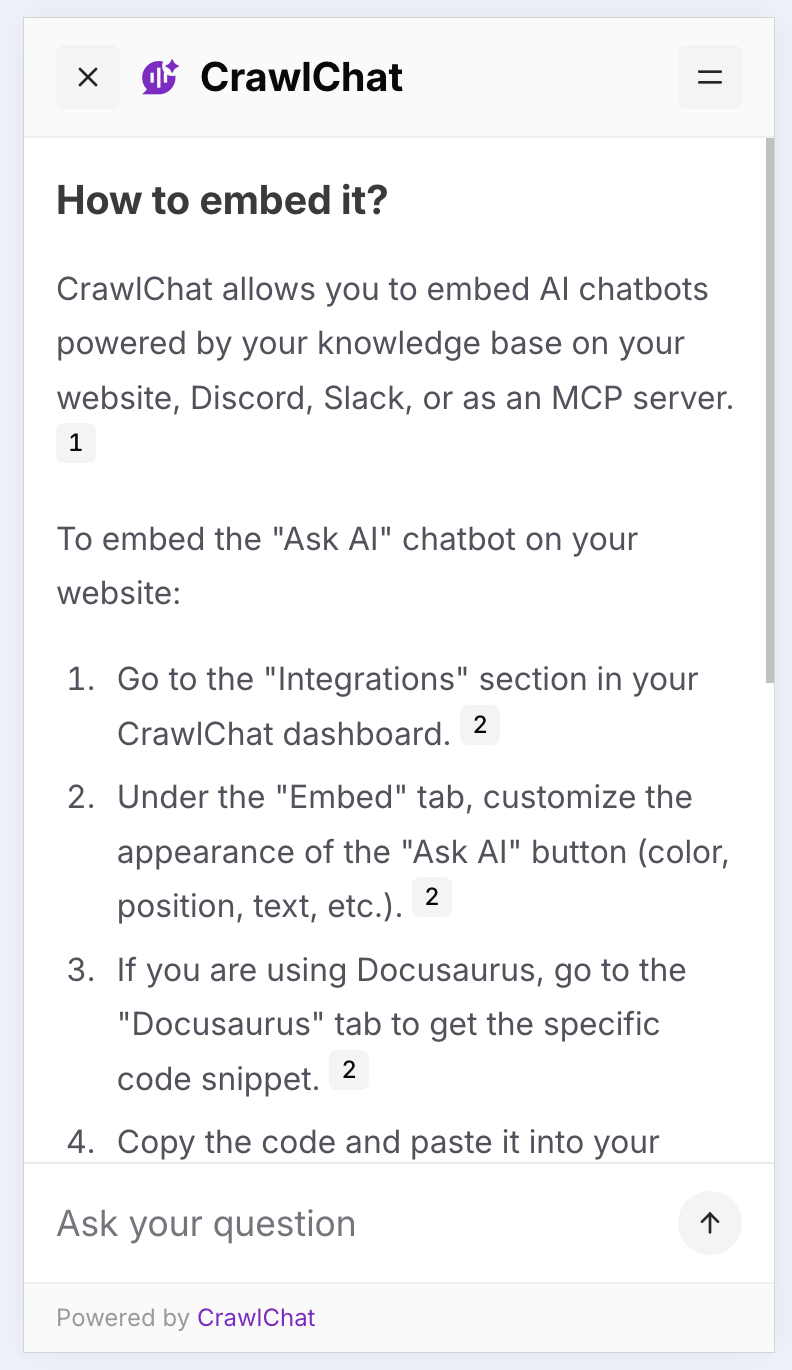
Now the chat widget on mobile takes the fullscreen for better user experiance. Users can close the widget by the close button available on the top left corner.
July 26, 2025
Added Tooltip option for the Ask AI button you embed on your webpage. This shows on top of the Ask AI button always. It is helpful to prompt the user that they can use the Ask AI button for resolving their queries. You can customise the text from the Customise widget section.
July 22, 2025
Now you can use OpenAI o4-mini model on both Starter and Pro plans. Here is the summary of the current available models
| Model | Credits per message | Answer quality | Plan |
|---|---|---|---|
| 4o-mini | 1/message | Basic | Free |
| o4-mini | 2/message | Reasoning | Starter, Pro |
June 26, 2025
You can enable support ticket module on demand for any collection. Once enabled, there are two ways that the user can create Support Ticket from the chatbot
- Whenver the chatbot answers a question it prompts the user if the query is resolved. If they chose NO, it shows a form which takes title, description, and email so that it can create a support ticket
- The second way is, the chatbot itself shows the support ticket creation form whenever it has no answer from the knowledge base. It auto fills the title and descriptions. The user can just enter the email so that the support ticket gets created
Once the support ticket is created, you can manage them from Tickets page on the dashboard. The users gets all the updates such as new messages and resolution on their email. The ticket can be accessed only from an unique link wich is only sent to the user, so it is pretty secured as well.